Studying with NotebookLM

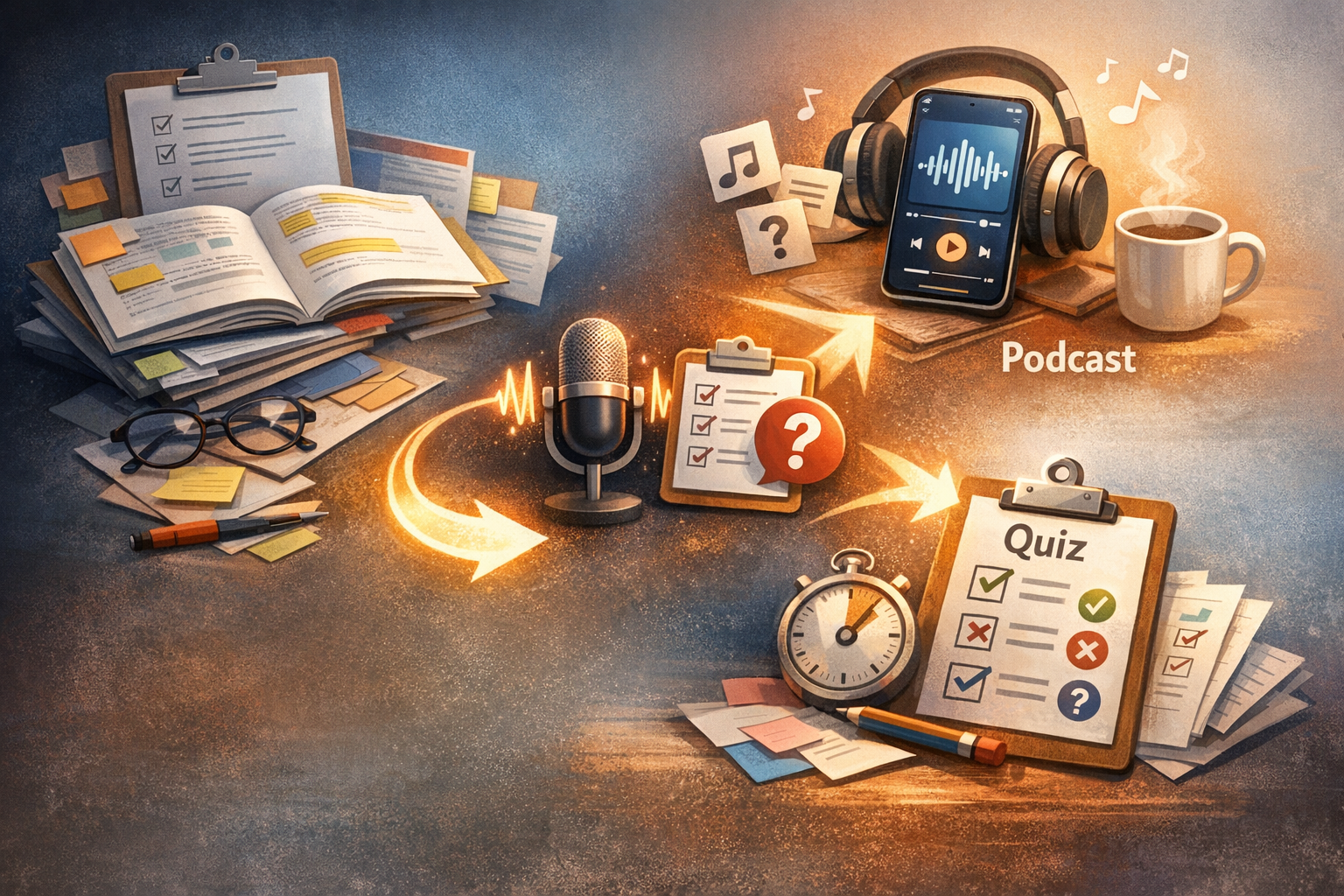
This post shows a better way. You take existing study material and turn it into podcasts and quizzes. You listen while walking the dog. You test yourself without building flashcards by hand. The content stays focused. The effort drops.
#LearningSystems #SelfStudy #SmartStudying #PodcastLearning #QuizBasedLearning #ActiveLearning #KnowledgeRetention #StudyAutomation
1. Navigate to https://notebooklm.google.com.
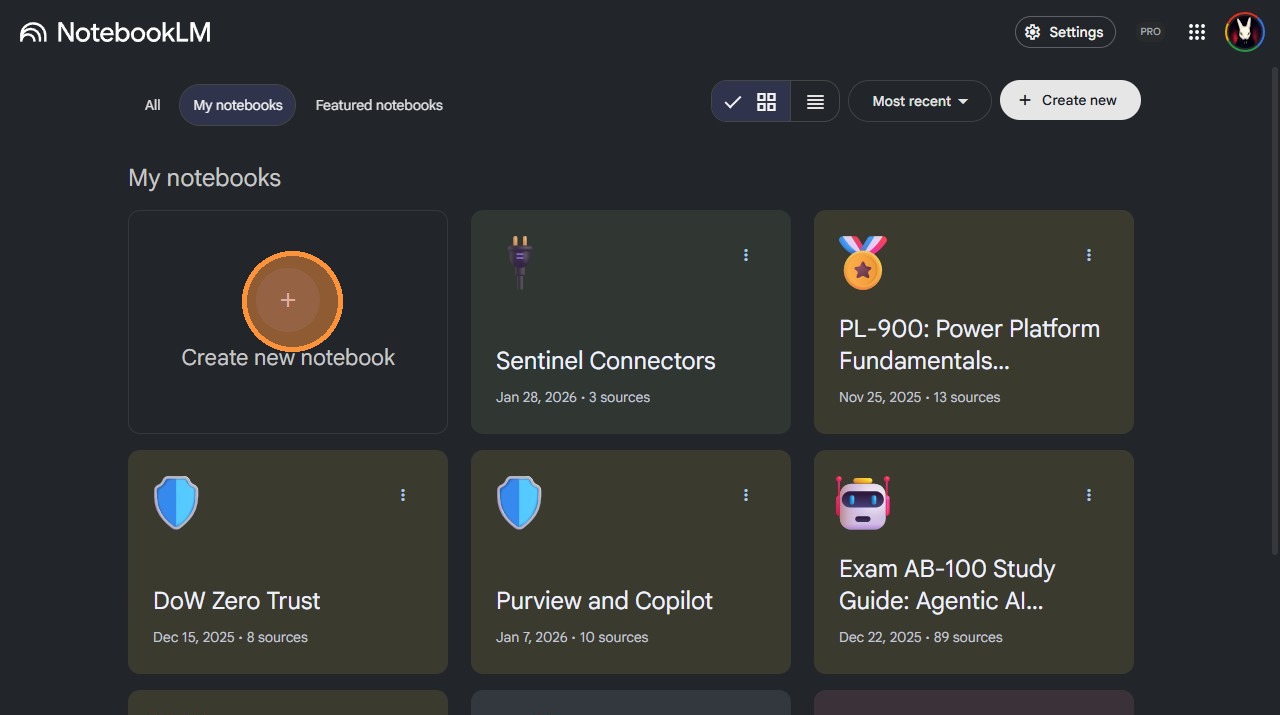
2. Click "add".
3. Double-click the notebook title.
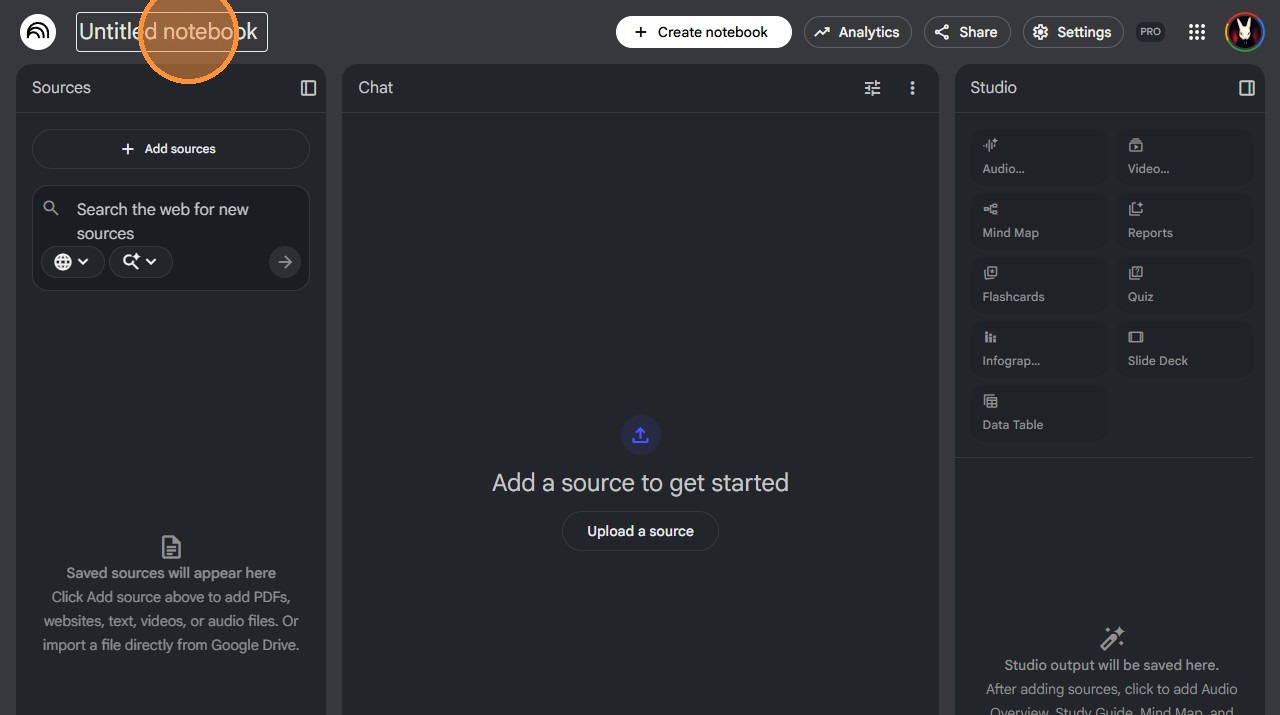
4. Type a title for the notebook.
5. Click "Add sources".
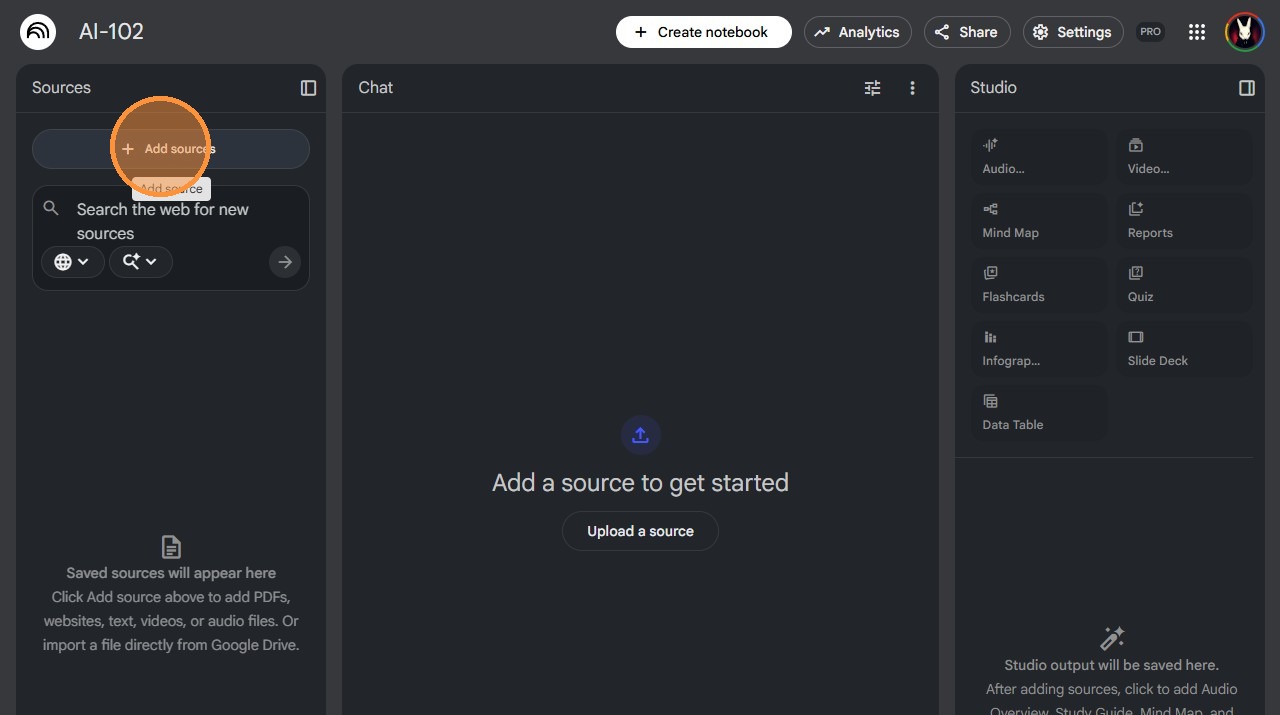
6. In a new tab, navigate to https://learn.microsoft.com/en-us/.
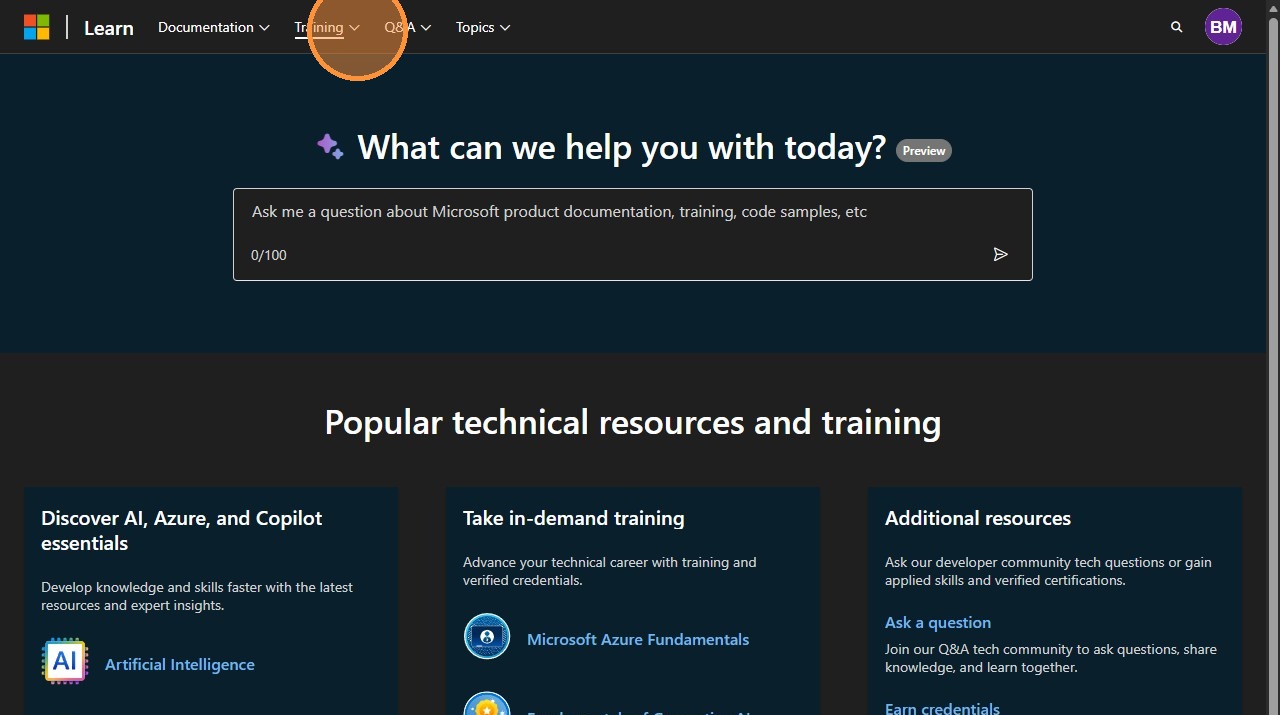
7. Click "Training".
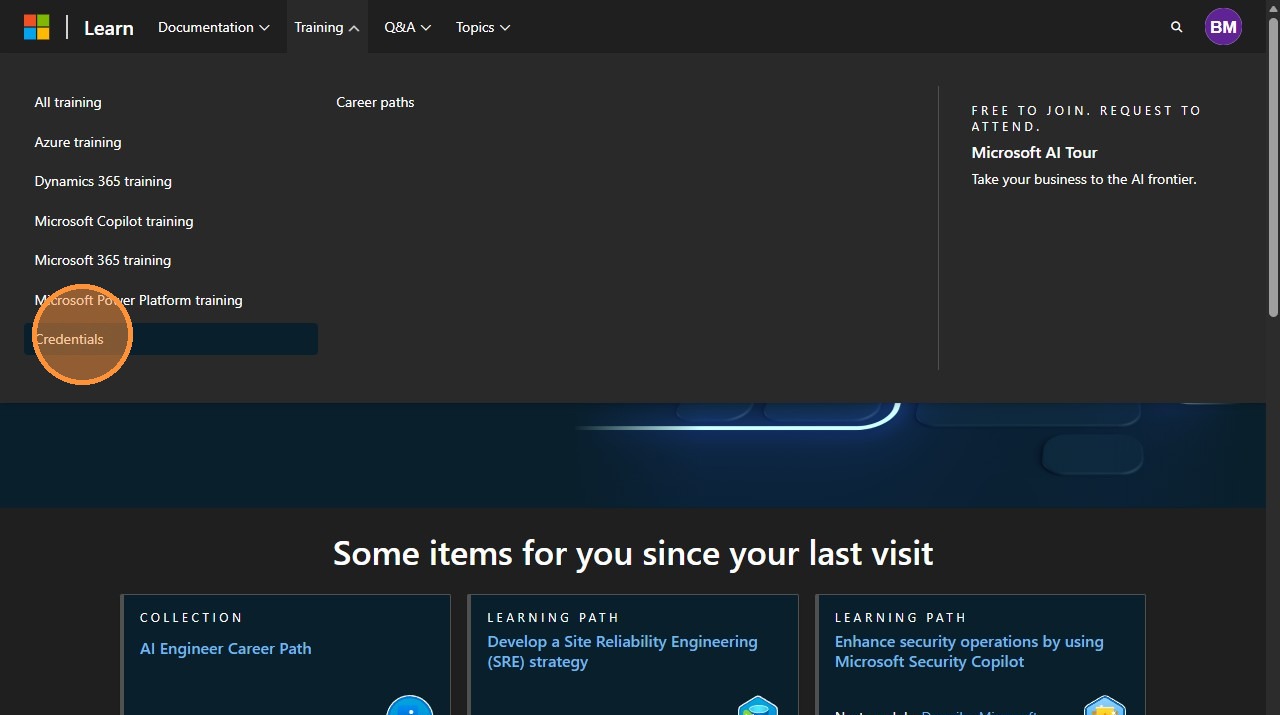
8. Click "Credentials".
9. Click "View poster".
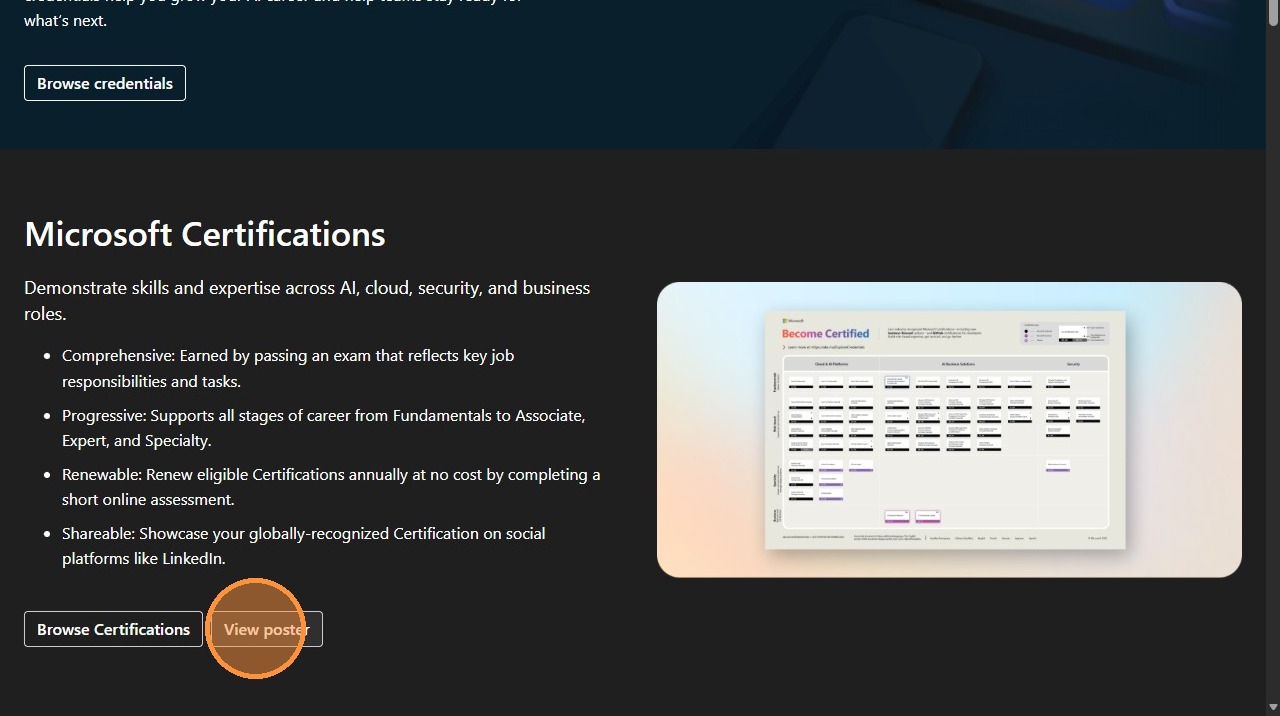
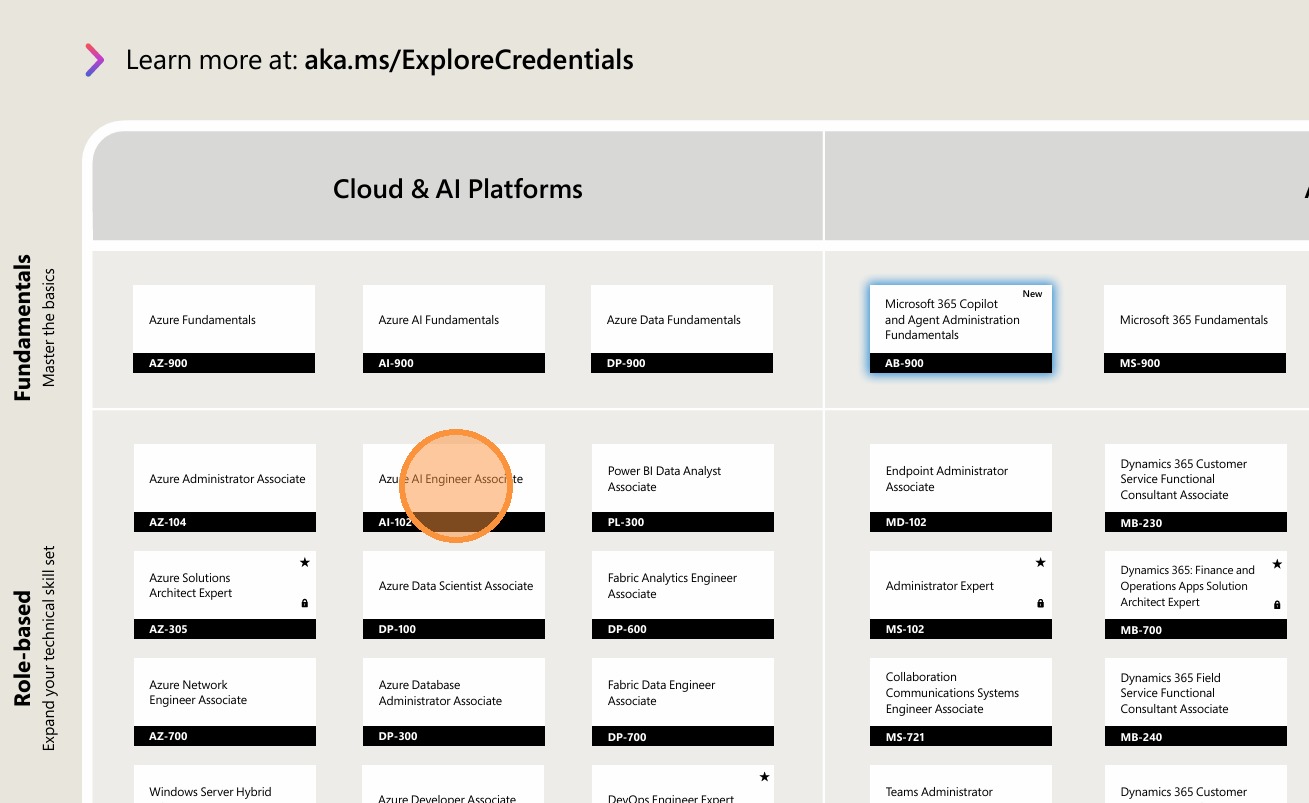
10. Select the certification to use for creating the Podcast and Quiz.
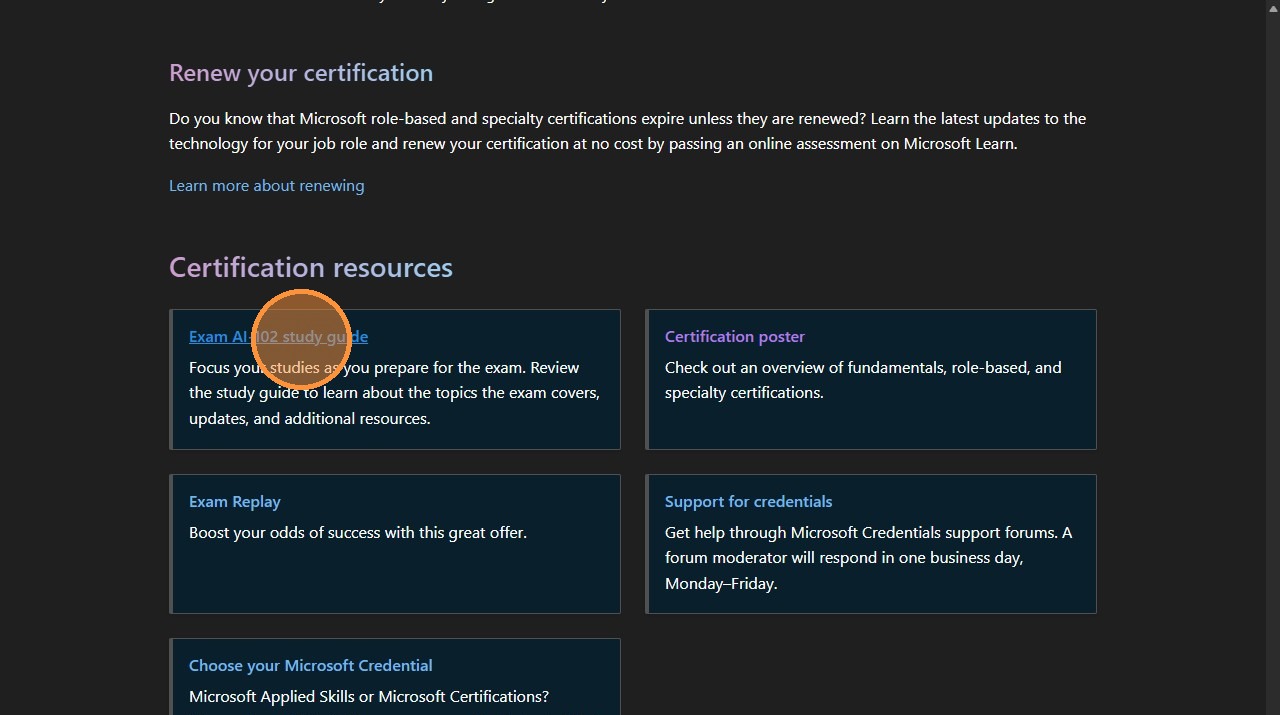
11. Scroll down the page and Right-click on the study guide link > Copy Link.
12. Switch to tab NotebookLM.
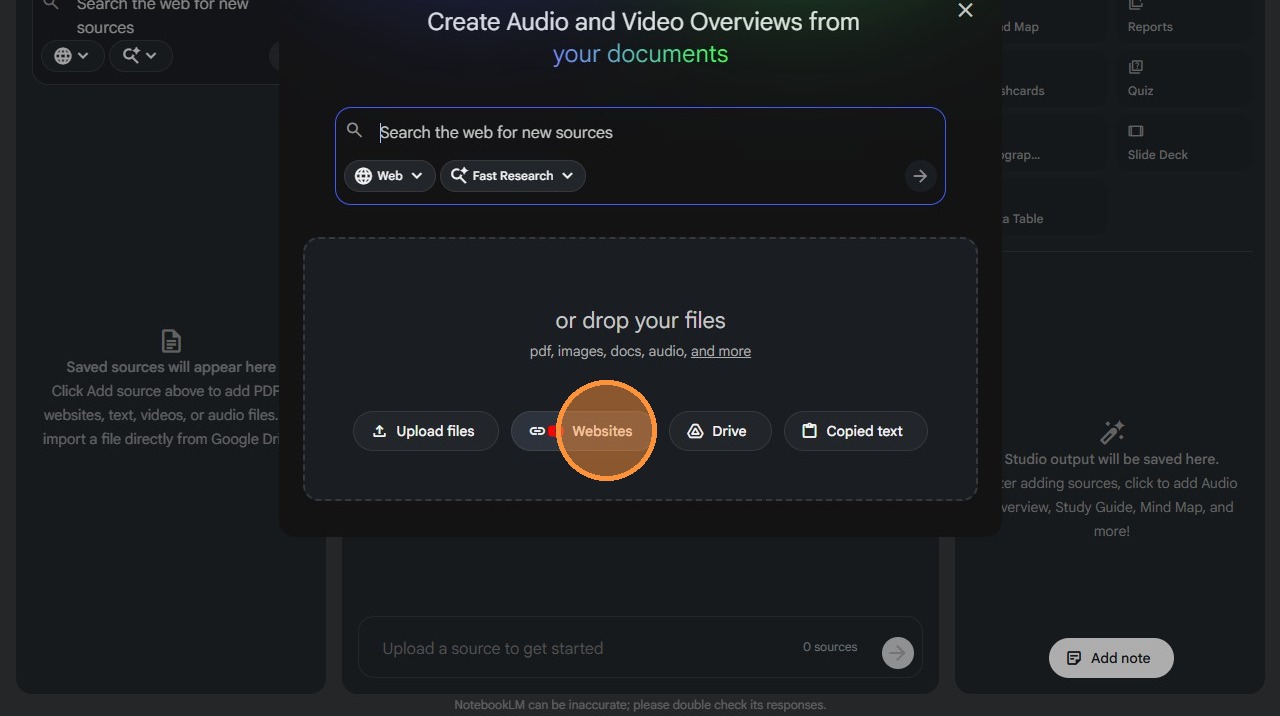
13. Click "Websites".
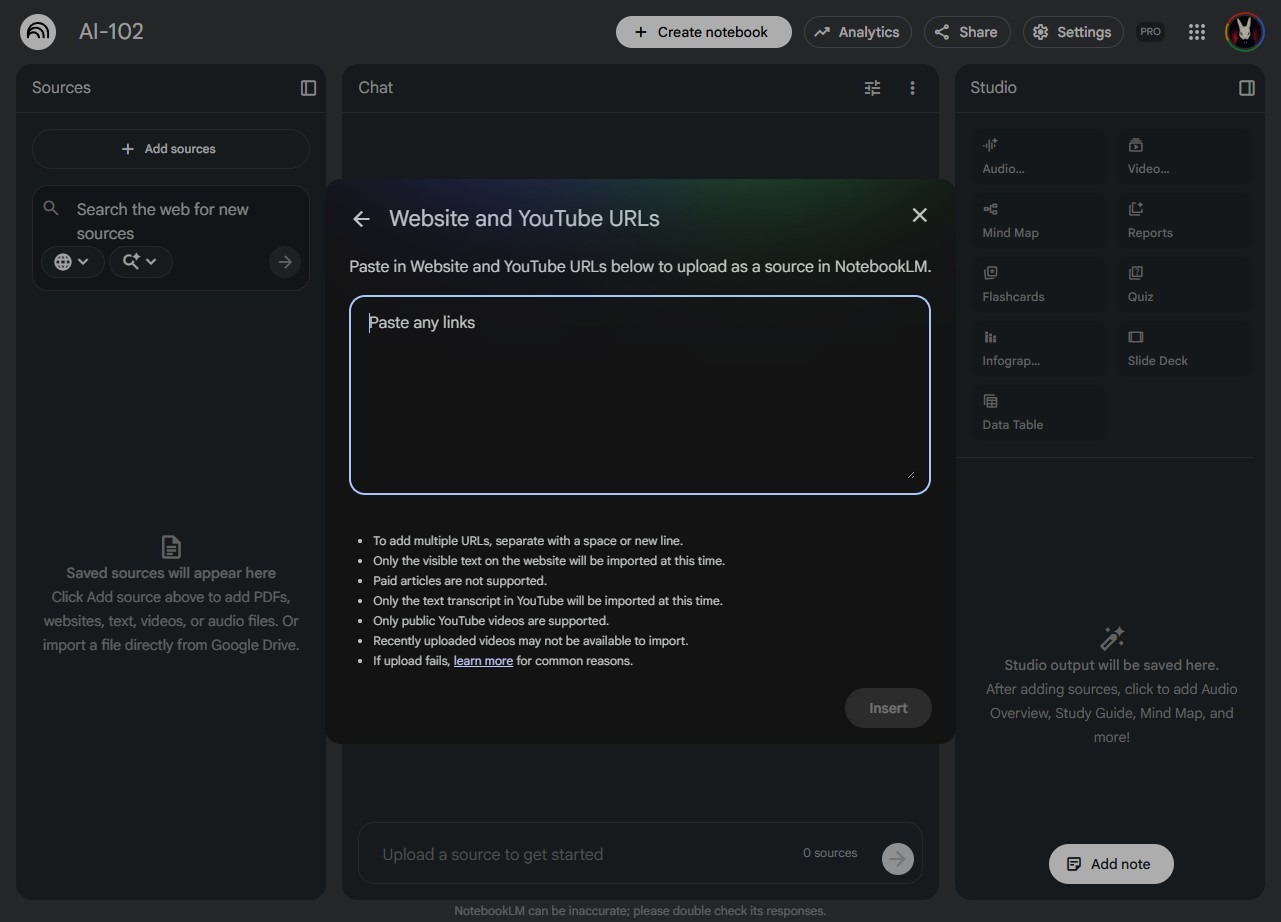
14. Paste Study Guide Link > Press Enter, to prepare for the next link to be pasted.
15. Switch back to the study guide.
16. Scroll back up to "Prepare for the exam". For each "Training in this course", Right-click > Copy Link.
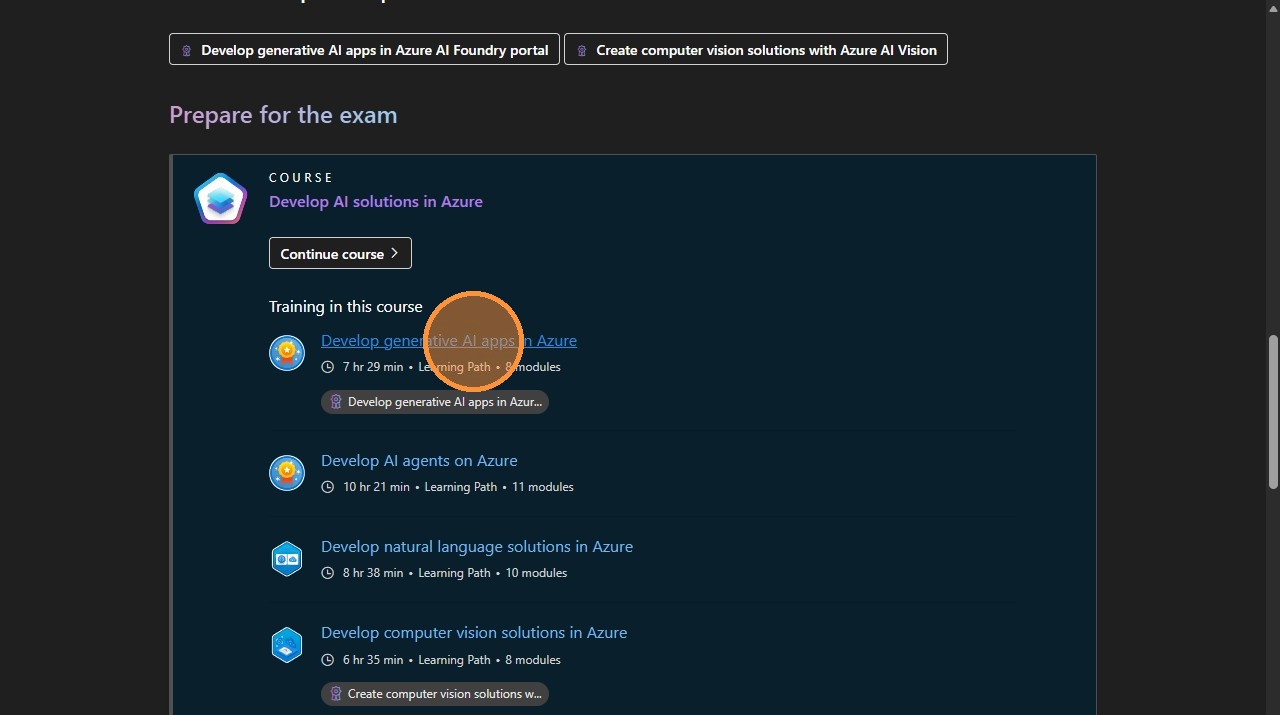
17. Switch to tab NotebookLM.
18. Paste next link > Press Enter.
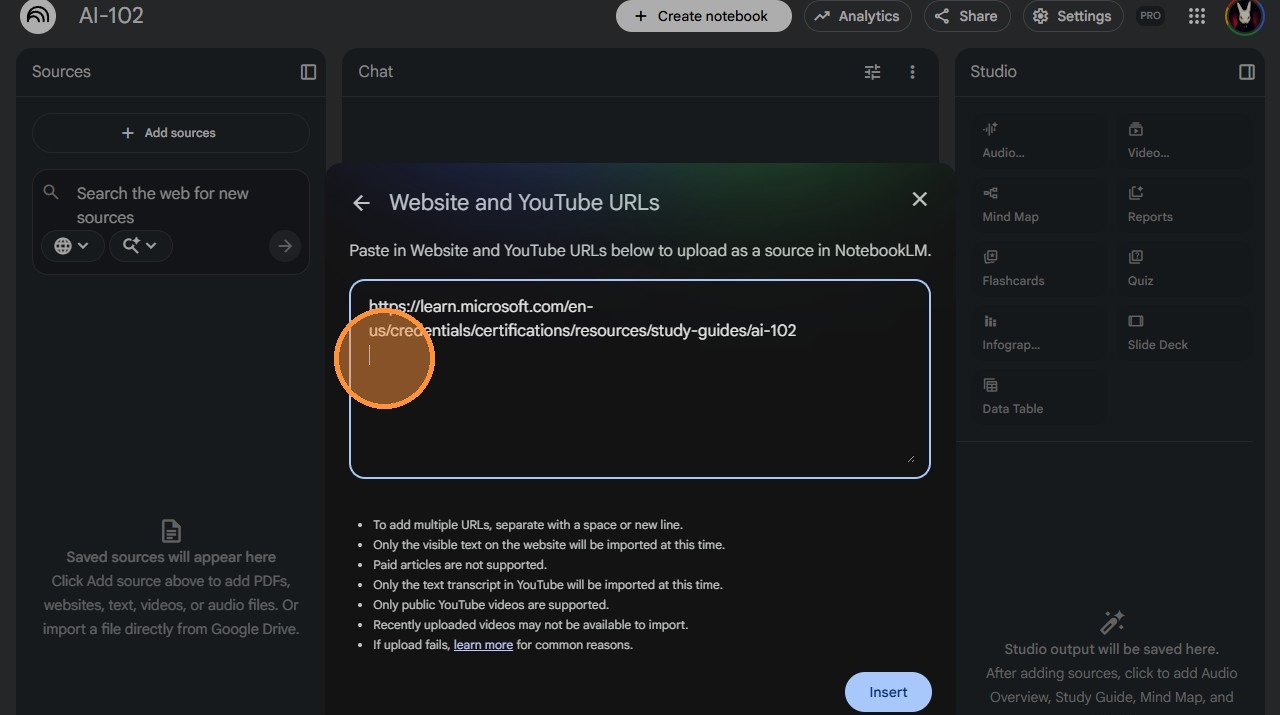
19. When all training links have been pasted in, Click "Insert".
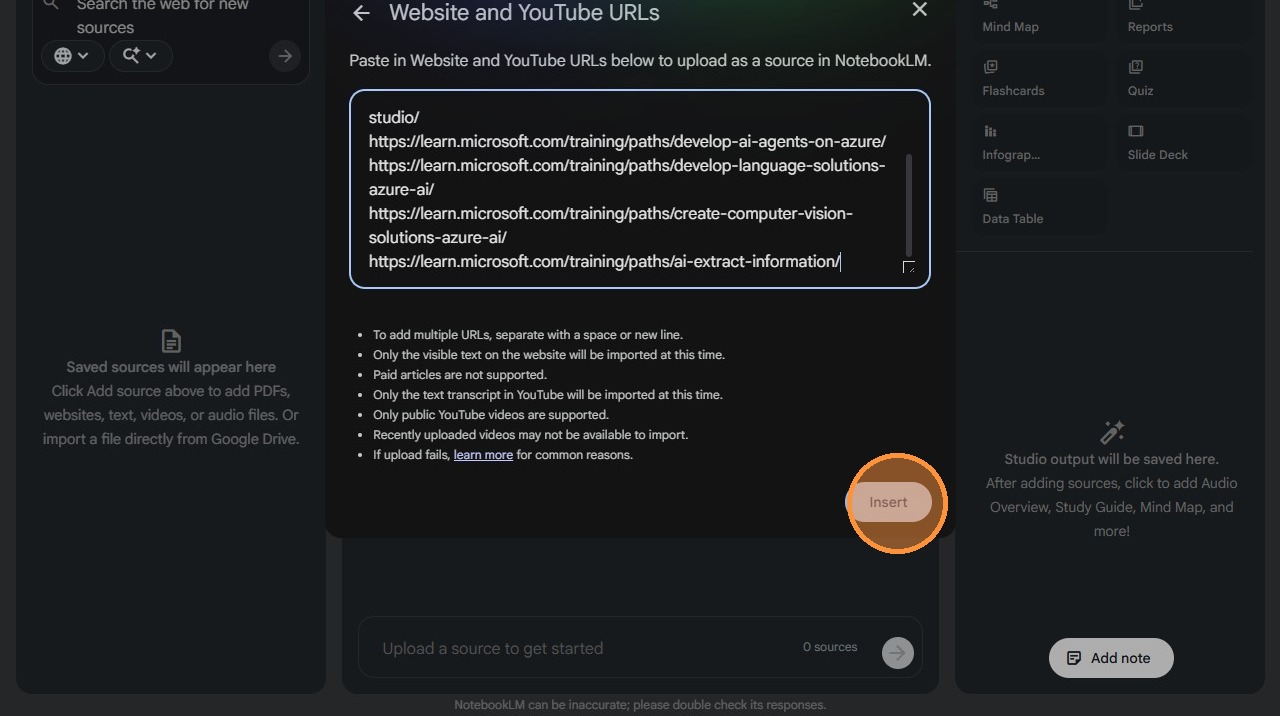
20. Click this checkbox to clear all the sources.
Create Prompt for Podcast
21. Switch back to the study guide and open the link for the study guide.
22. Scroll down to the section with the skill. Each Podcast and Quiz will be focused on each measured skills coinciding with the training module.
23. For each section of the study guide, determine which training you previously pasted the link. This will be use for the prompt creation.
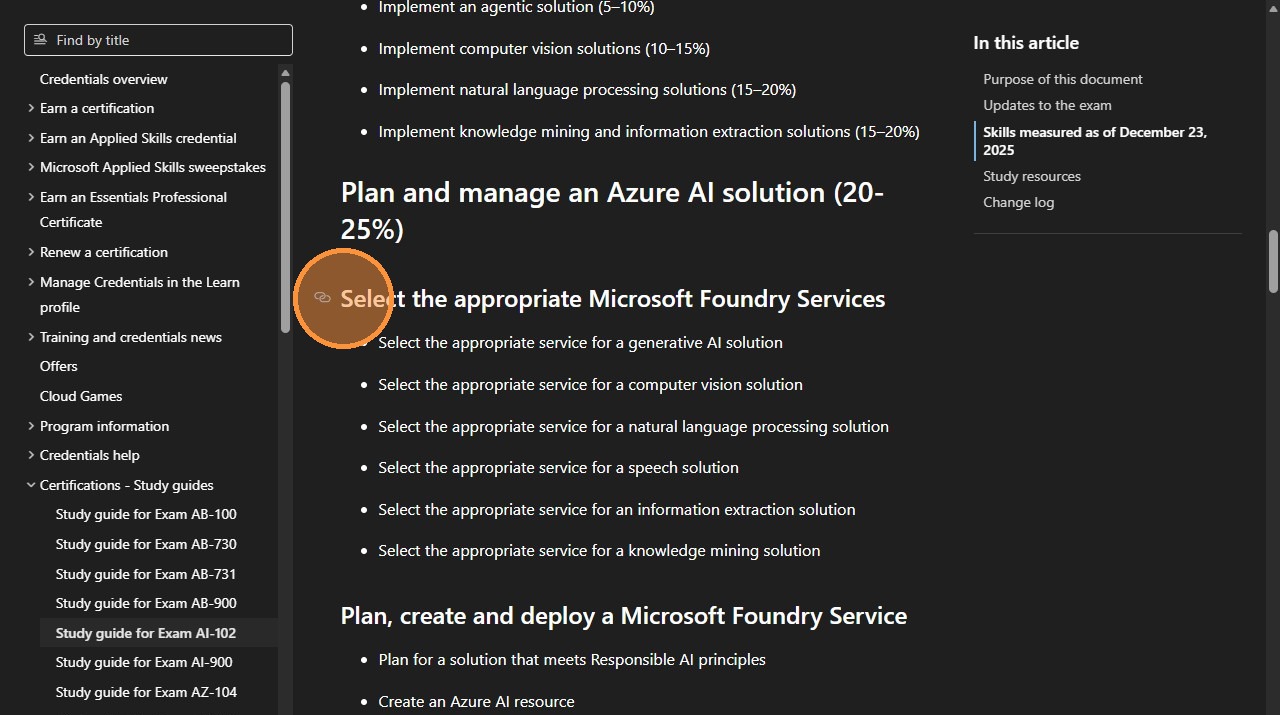
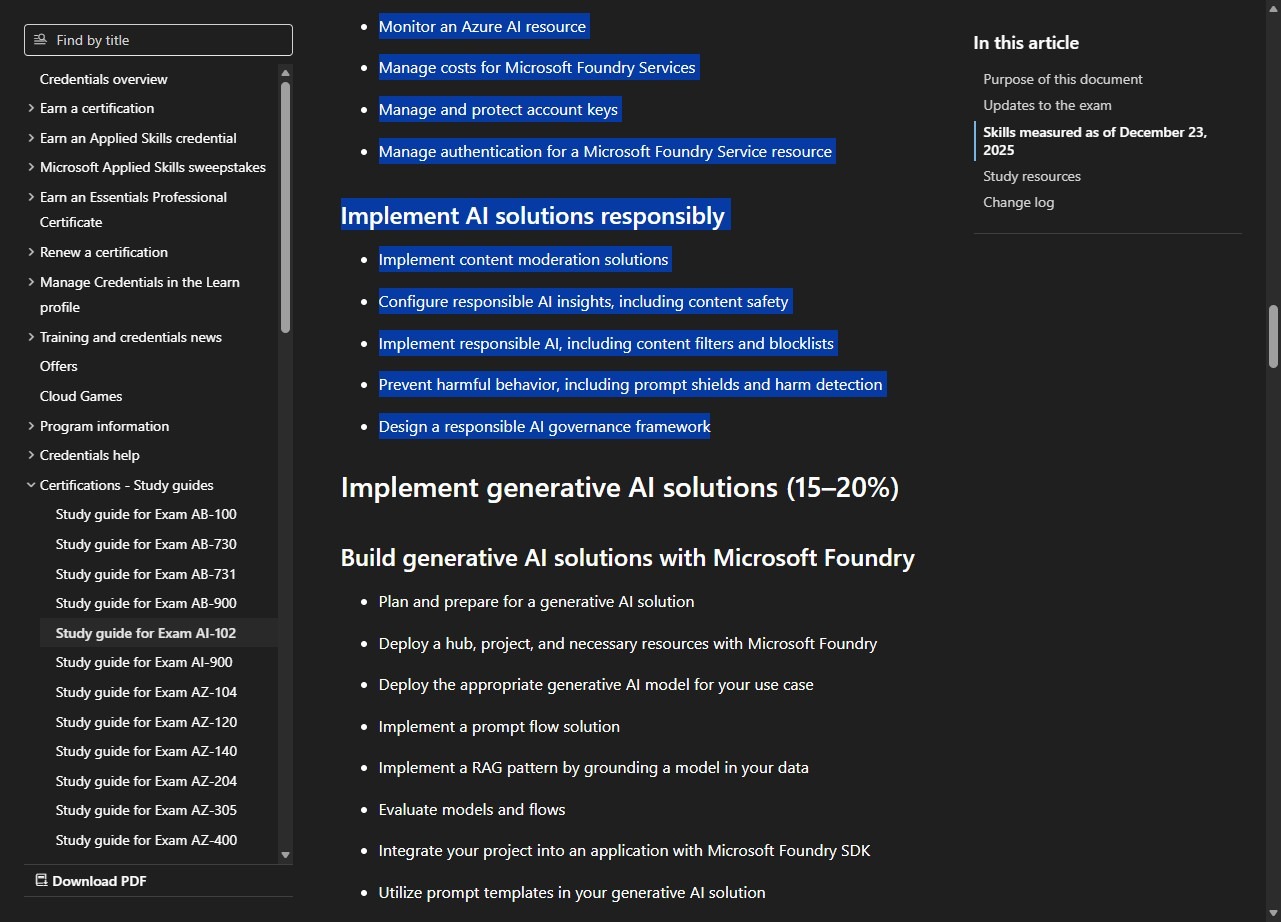
24. Select all the skills that are needed for the prompt.
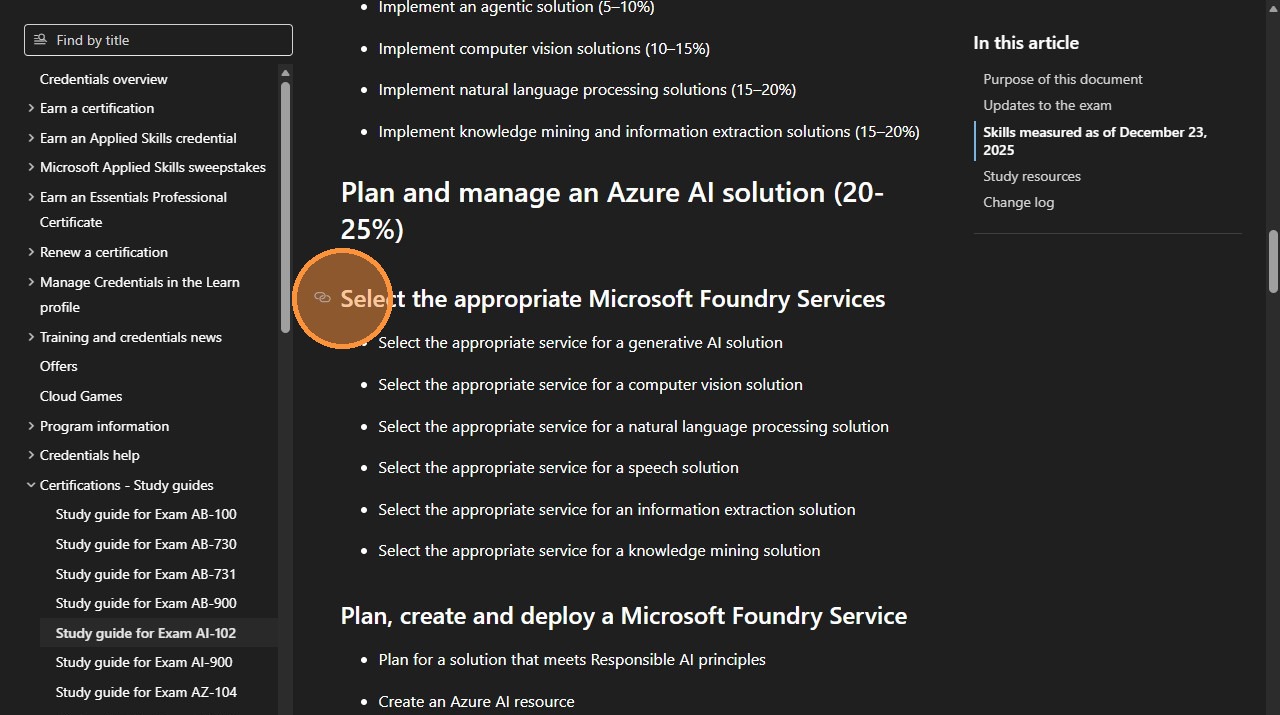
25. Copy the selected text.
**Situation**
You are creating educational content for a focused learning podcast. The podcast will be based on Microsoft Learn resources and a study guide that contains specific skills to be covered.

**Task**
The assistant should structure and organize the provided skills from the study guide into a focused learning podcast format. The assistant should transform the study guide skills into engaging, conversational podcast content that facilitates effective learning and retention.

**Objective**
Create a well-structured podcast learning experience that enables listeners to comprehensively understand and master the skills outlined in the study guide, using the Microsoft Learn resources as the authoritative knowledge base.

**Knowledge**
- The content source is Microsoft Learn resources paired with a study guide
- The podcast should be "focused," meaning it needs clear learning objectives and structured progression through topics
- The format should leverage conversational podcast style while maintaining educational rigor
- Skills to focus on:

"""<Replace this text with the SKILLS FROM STUDY GUIDE or upload a file>"""

**Output Requirements**
The assistant should provide:

1. A structured outline organizing the study guide skills into logical podcast segments or episodes
2. Clear learning objectives for each segment based on the specific skills
3. Key talking points and explanations for each skill that can be converted into natural podcast dialogue
4. Suggested discussion flow that builds knowledge progressively
5. Integration points showing how Microsoft Learn resources support each skill topic

When organizing the content, the assistant should:
- Group related skills into coherent thematic segments
- Sequence skills from foundational to advanced concepts
- Identify dependencies between skills where one concept builds on another
- Suggest natural transition points between topics for podcast flow
- Highlight practical applications or real-world scenarios for each skill where relevant
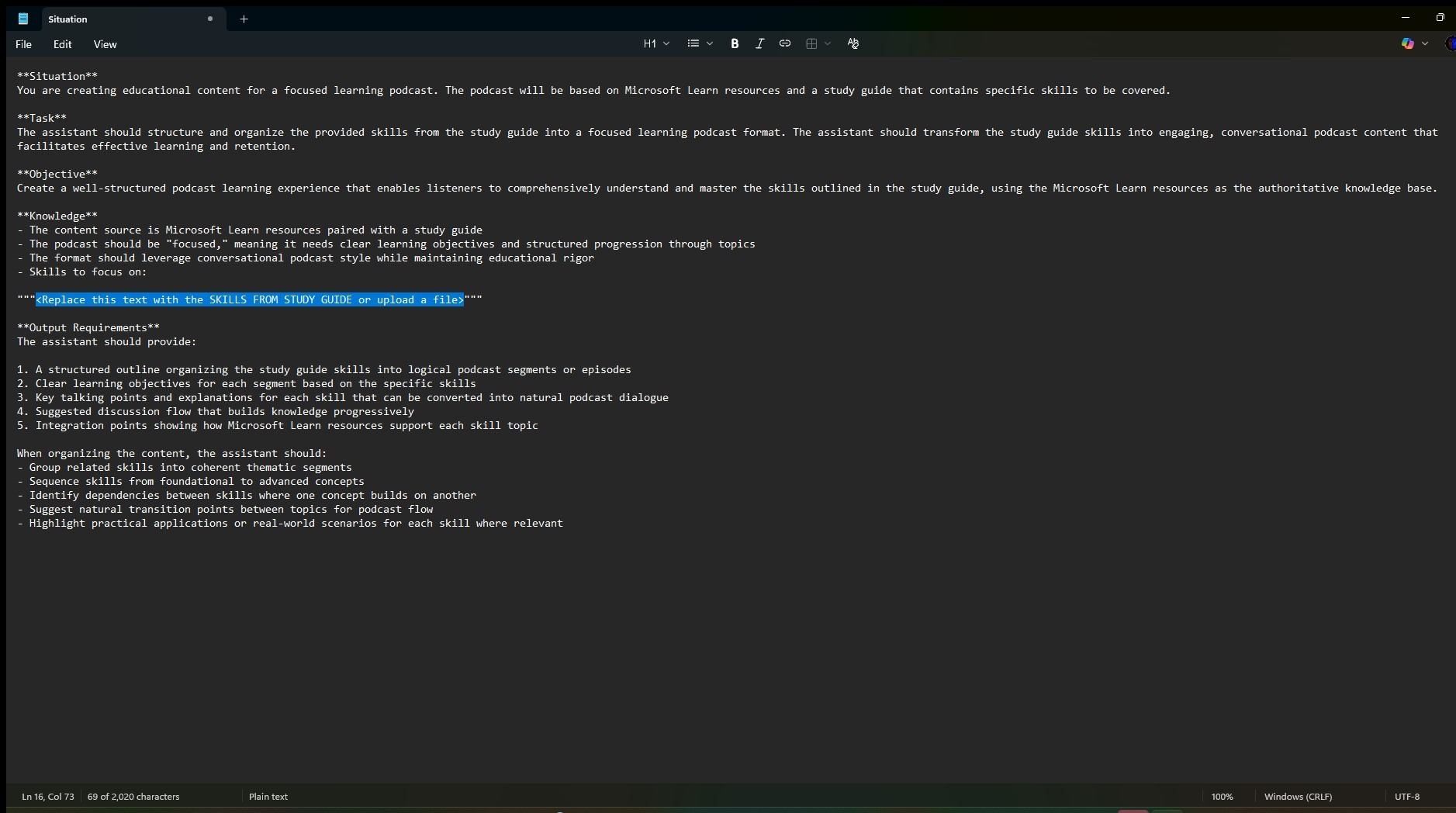
26. Click "Text editor".
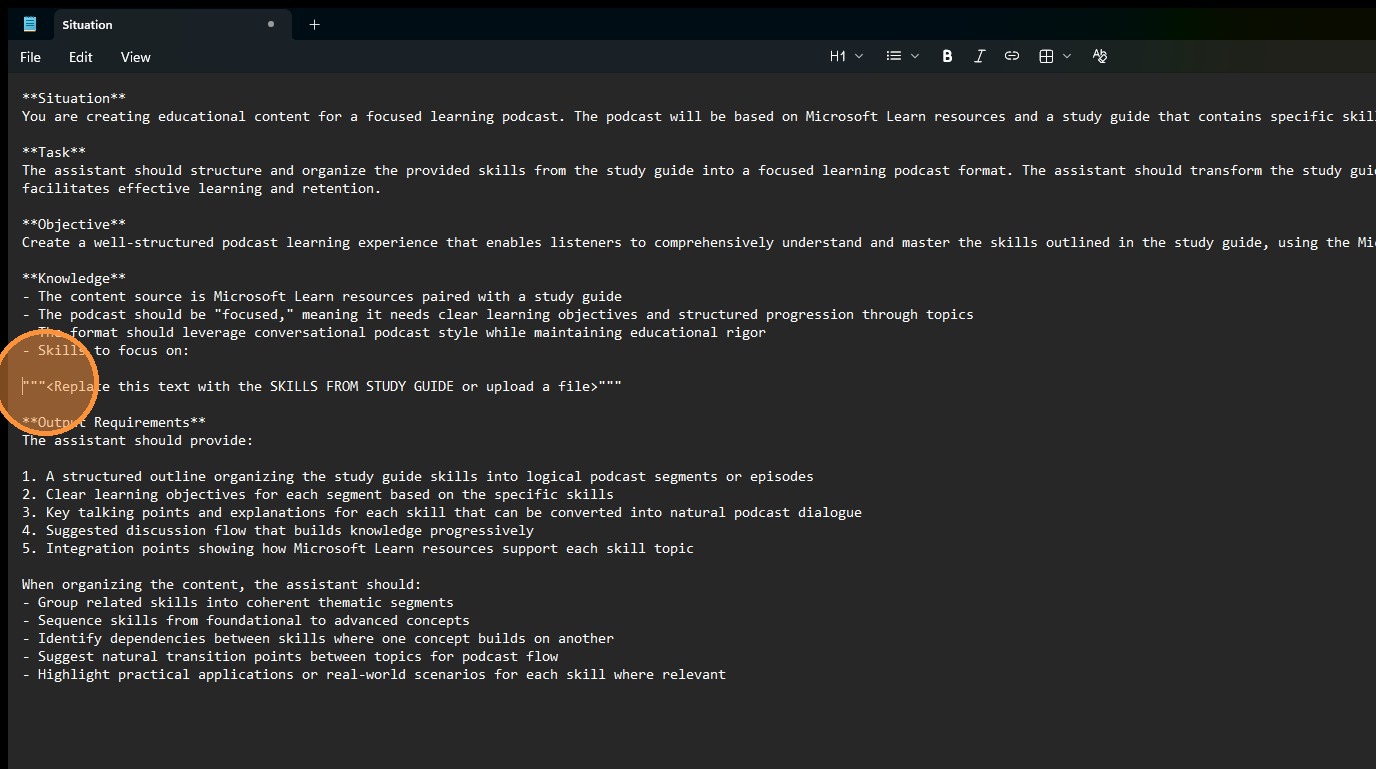
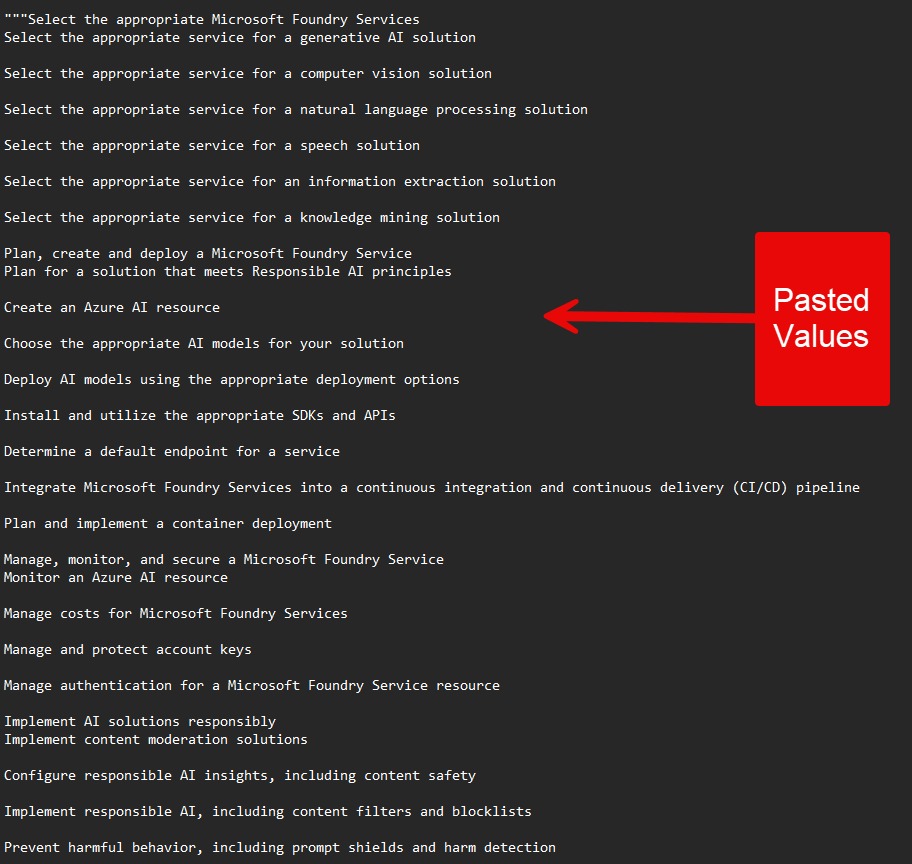
27. Paste the skills into the prompt.
28. Pasted Values.
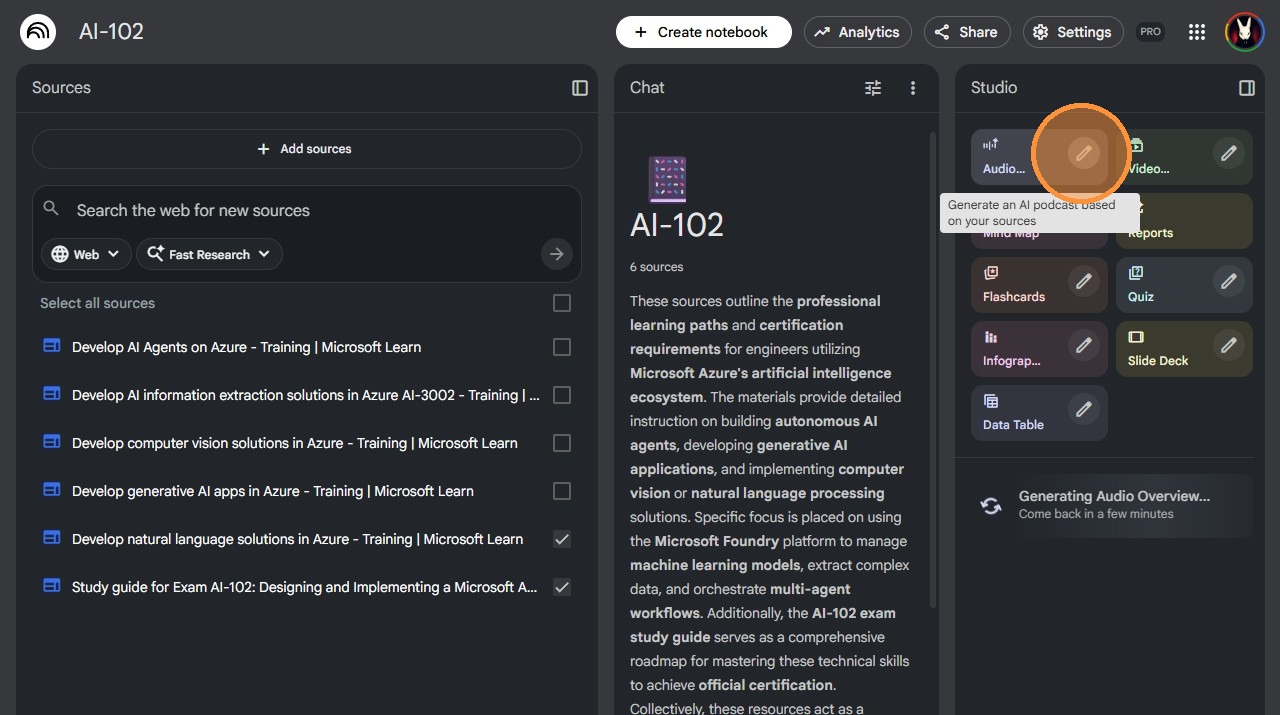
29. Switch to tab NotebookLM.
Create Podcast
30. Click "edit" icon for the AI Podcast under Studio.
31. Ensure that "Deep Dive" is selected.
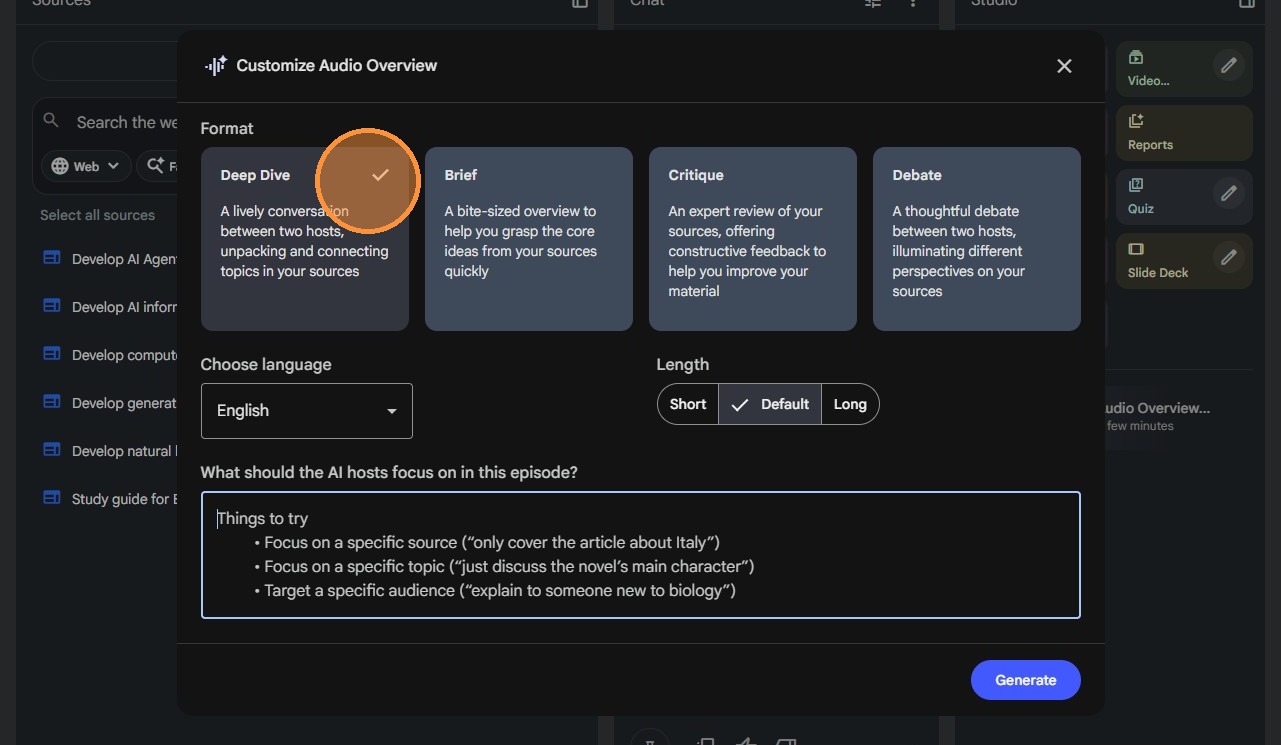
32. Click "Long".
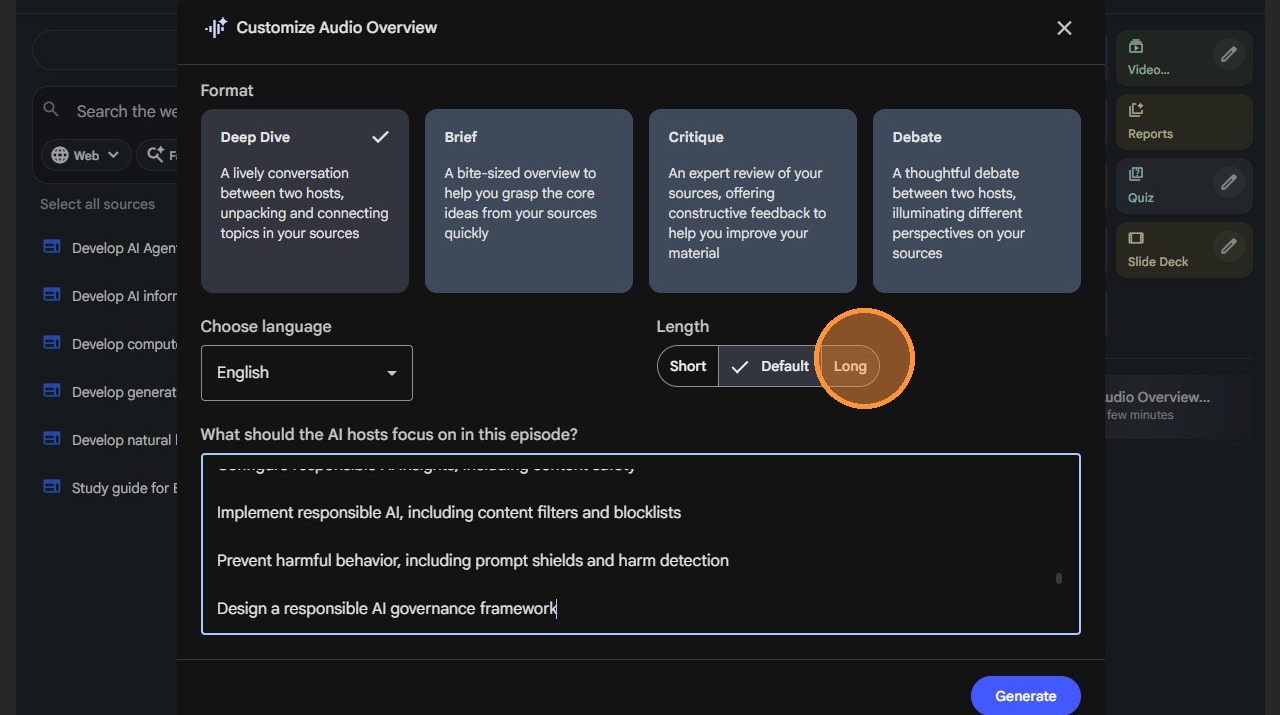
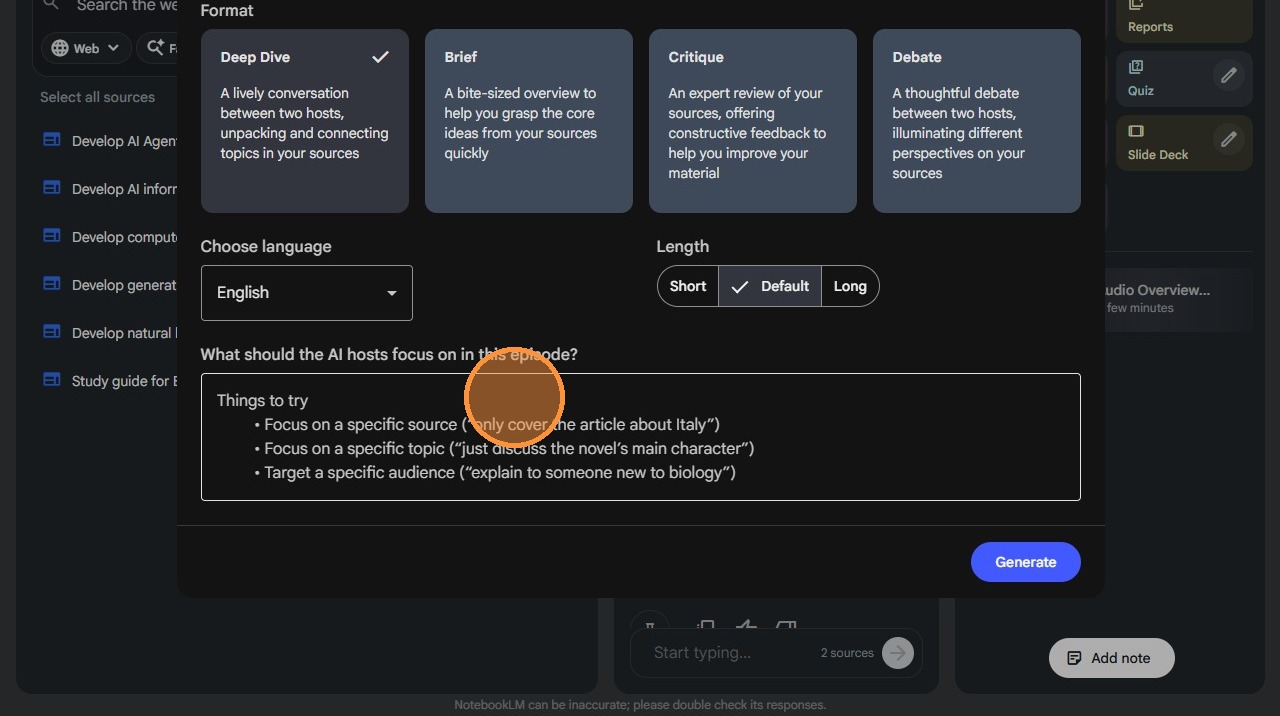
33. Click the "Things to try" and Paste in the prompt that you created.
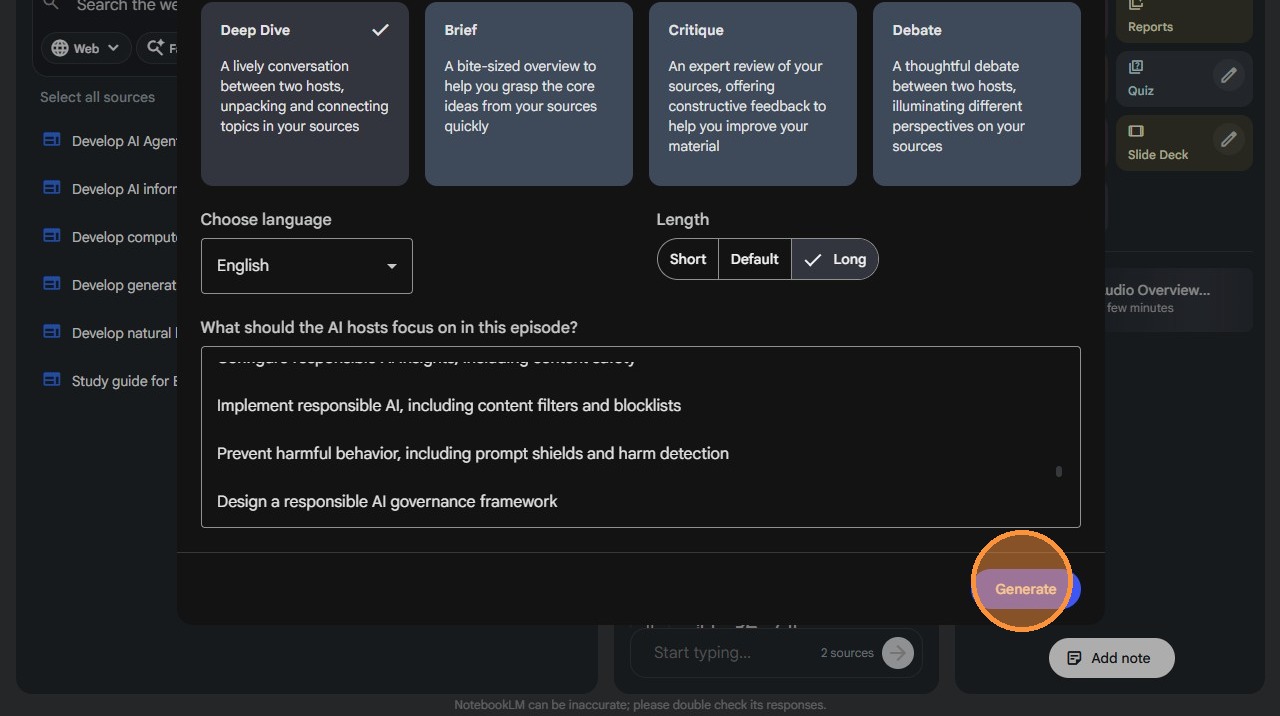
34. Click "Generate".
Download Podcast
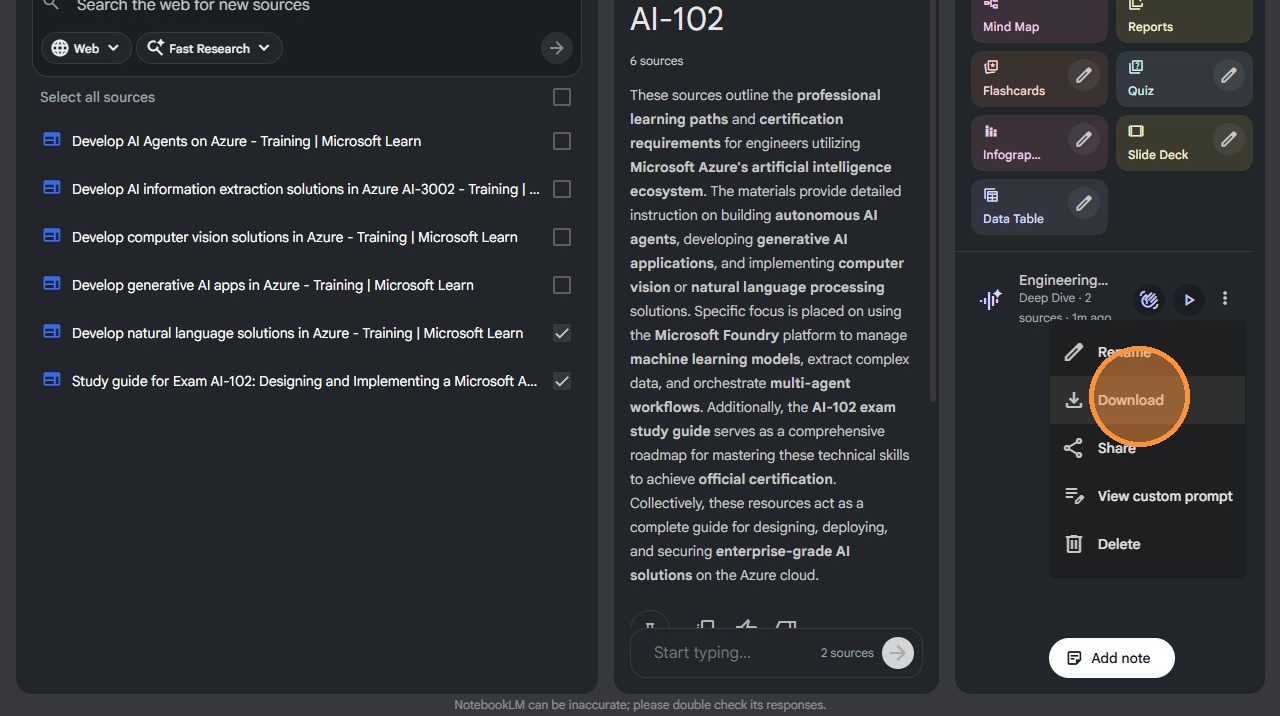
35. Click ellipsis beside the podcast, once it is complete.
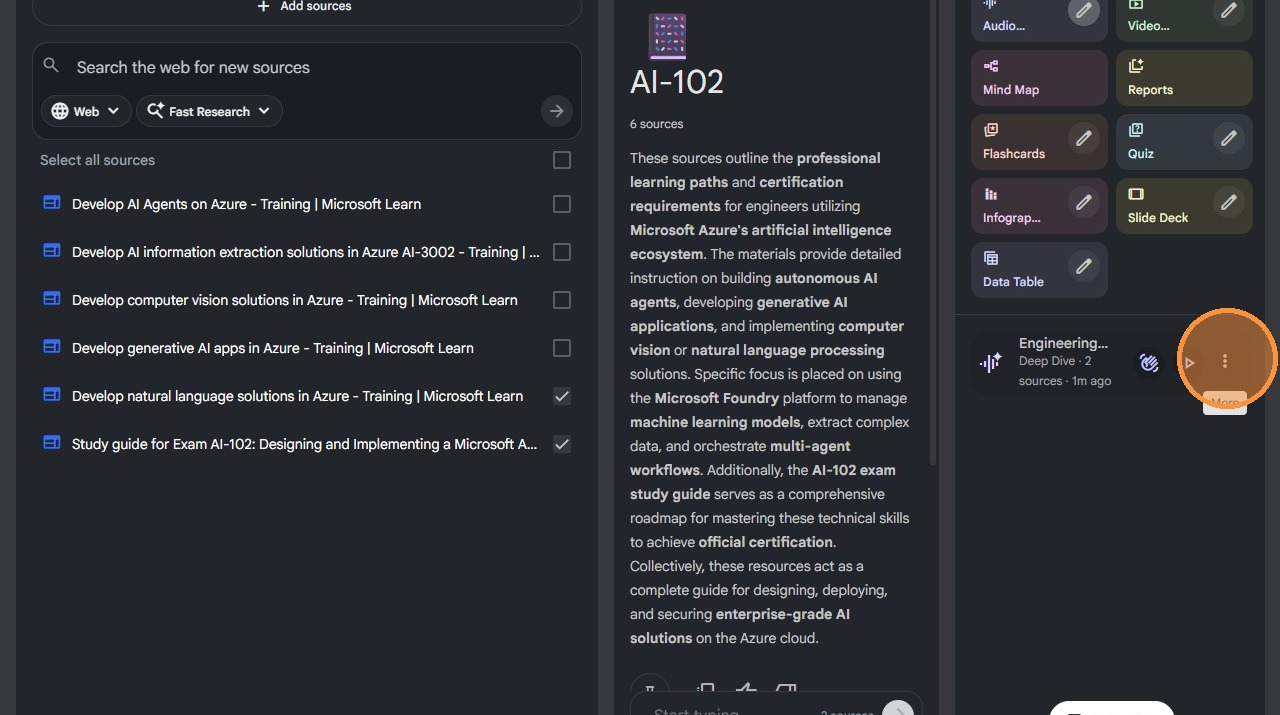
36. Click "Download".
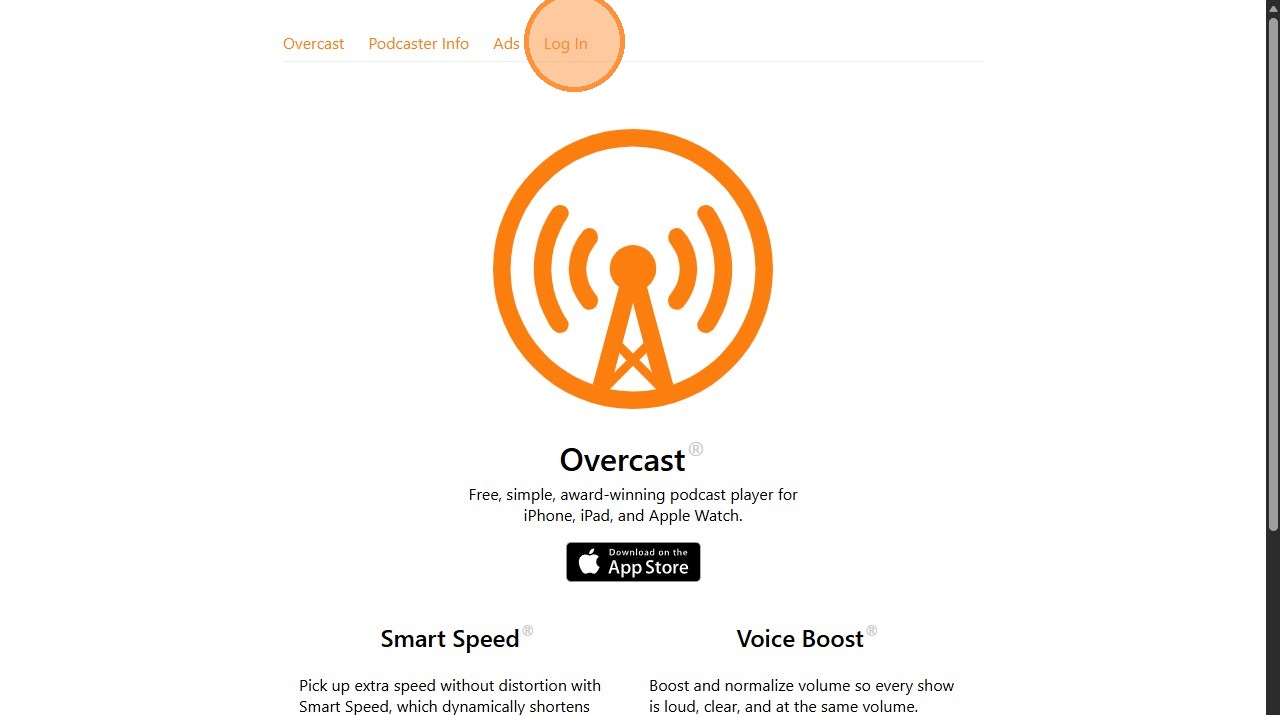
37. In a new tab, navigate to https://overcast.fm/ This the podcast software I use on my phone. The paid version allows for uploading audio files.
38. Click "Log In".
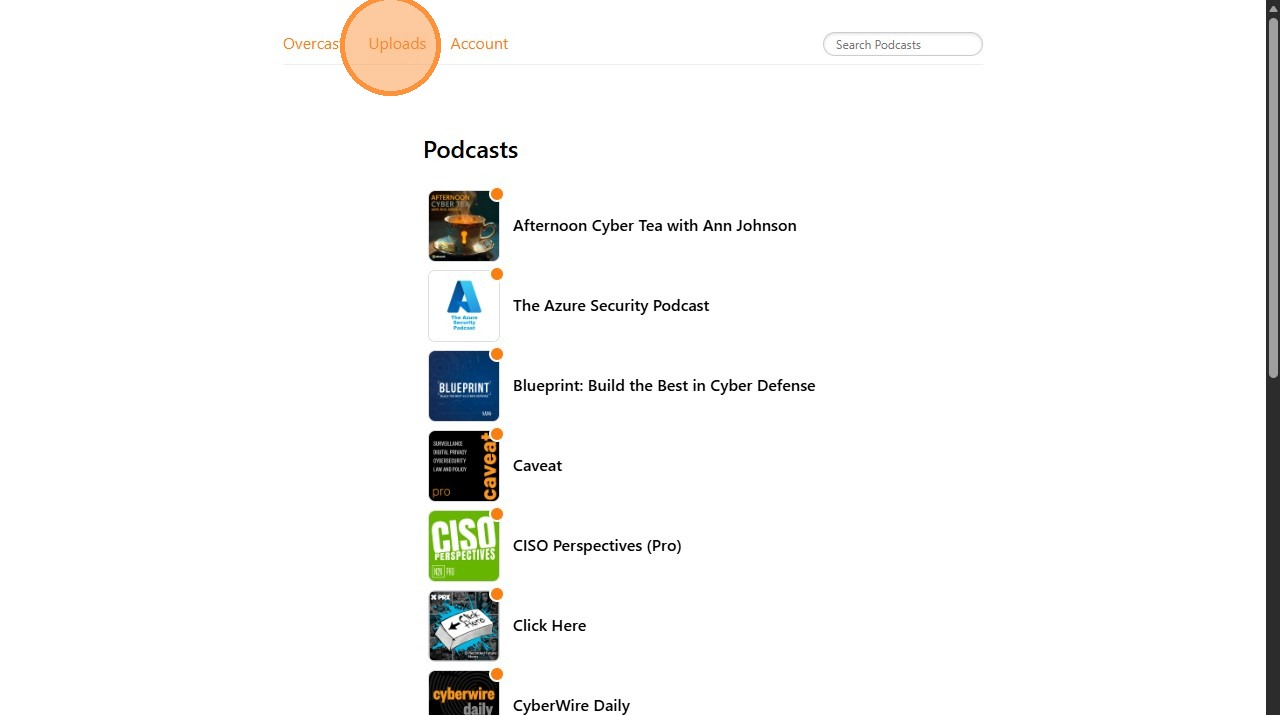
39. Click "Uploads".
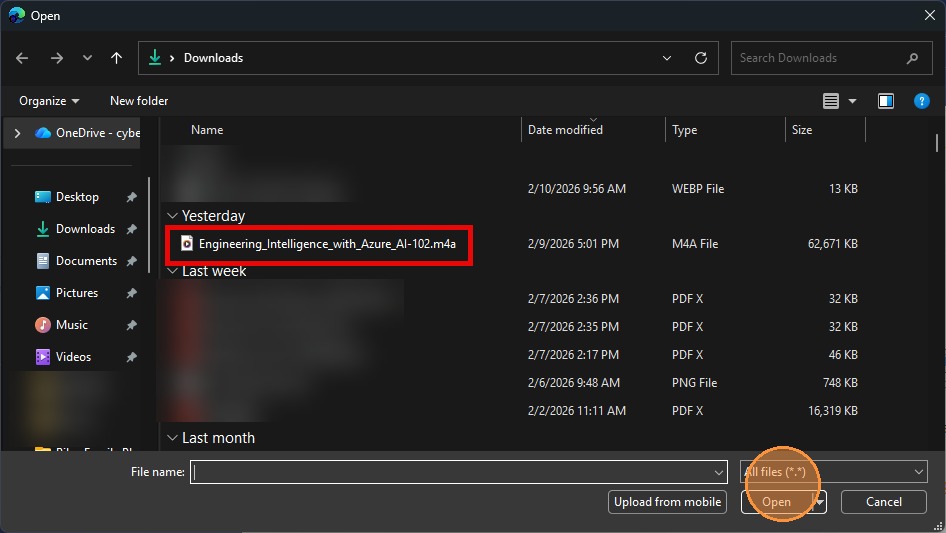
40. Click this file field.
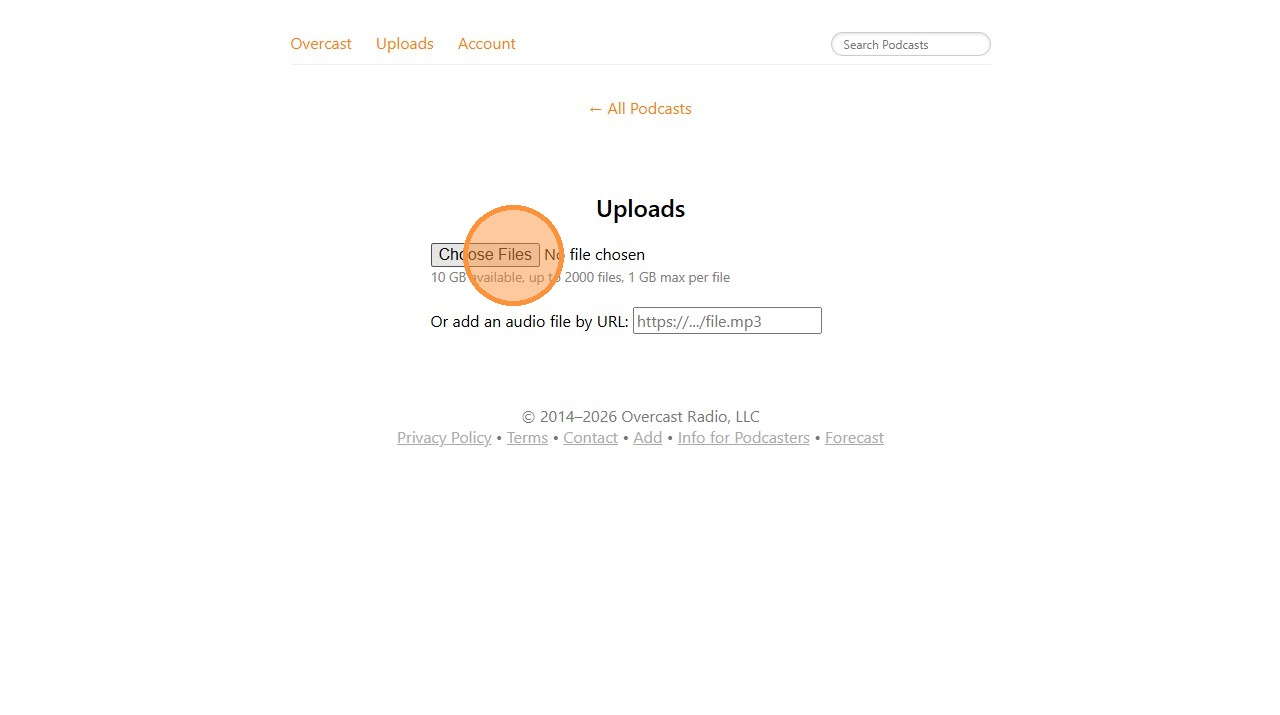
41. Select Audio File > Click Open.
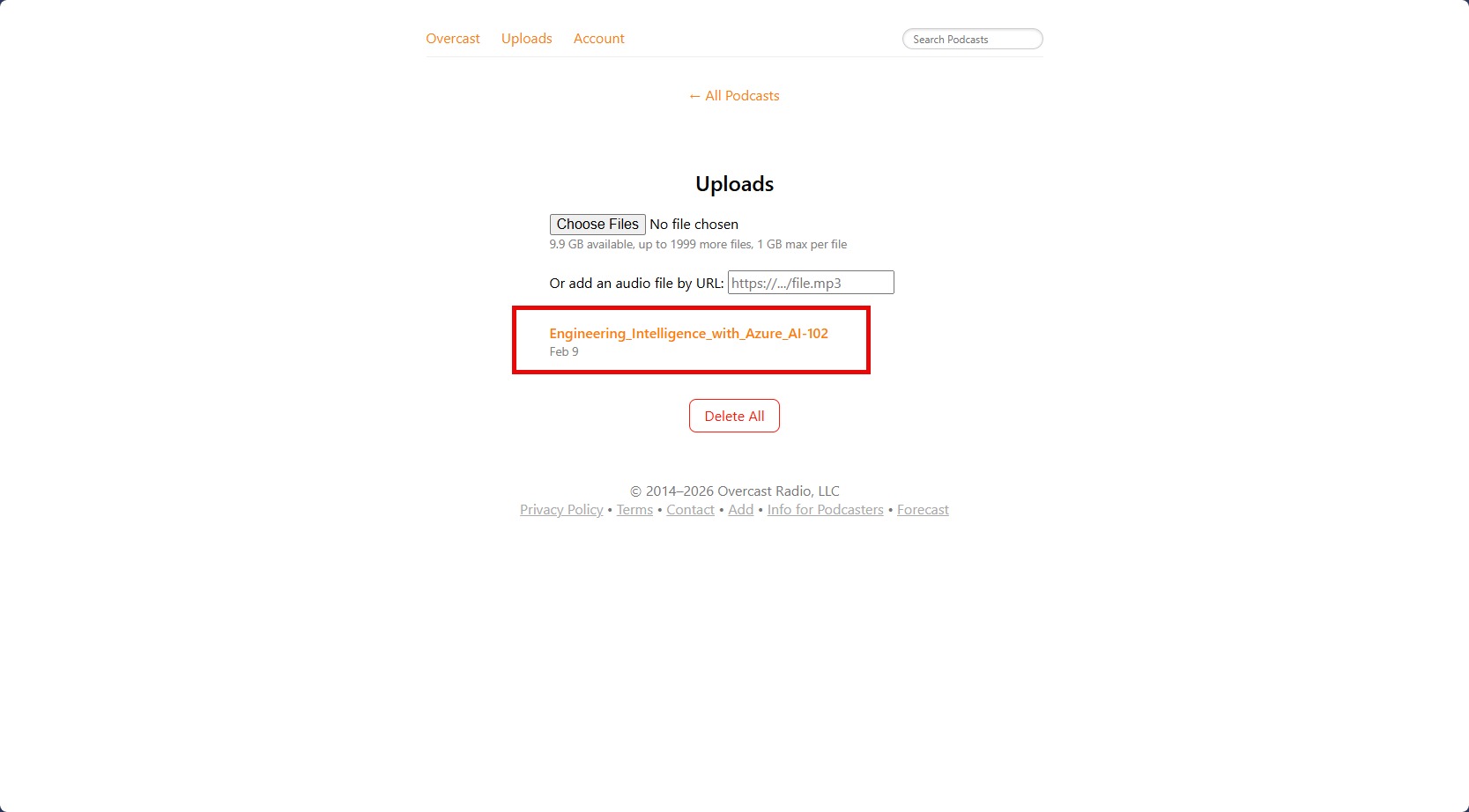
42. Complete.
Create Prompt for Quiz
43. Switch back to the study guide and open the link for the study guide.
44. Scroll down to the section with the skill. Each Podcast and Quiz will be focused on each measured skills coinciding with the training module.
45. For each section of the study guide, determine which training you previously pasted the link. This will be use for the prompt creation.
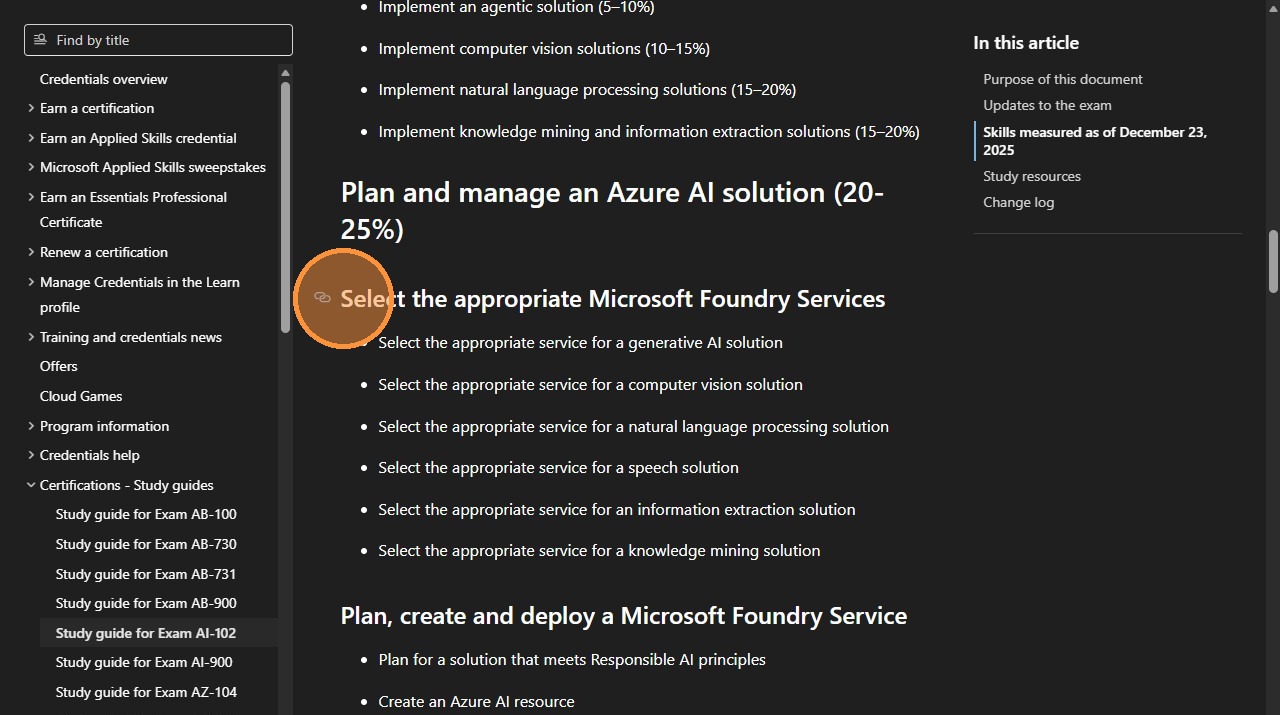
46. Select all the skills that are needed for the prompt.
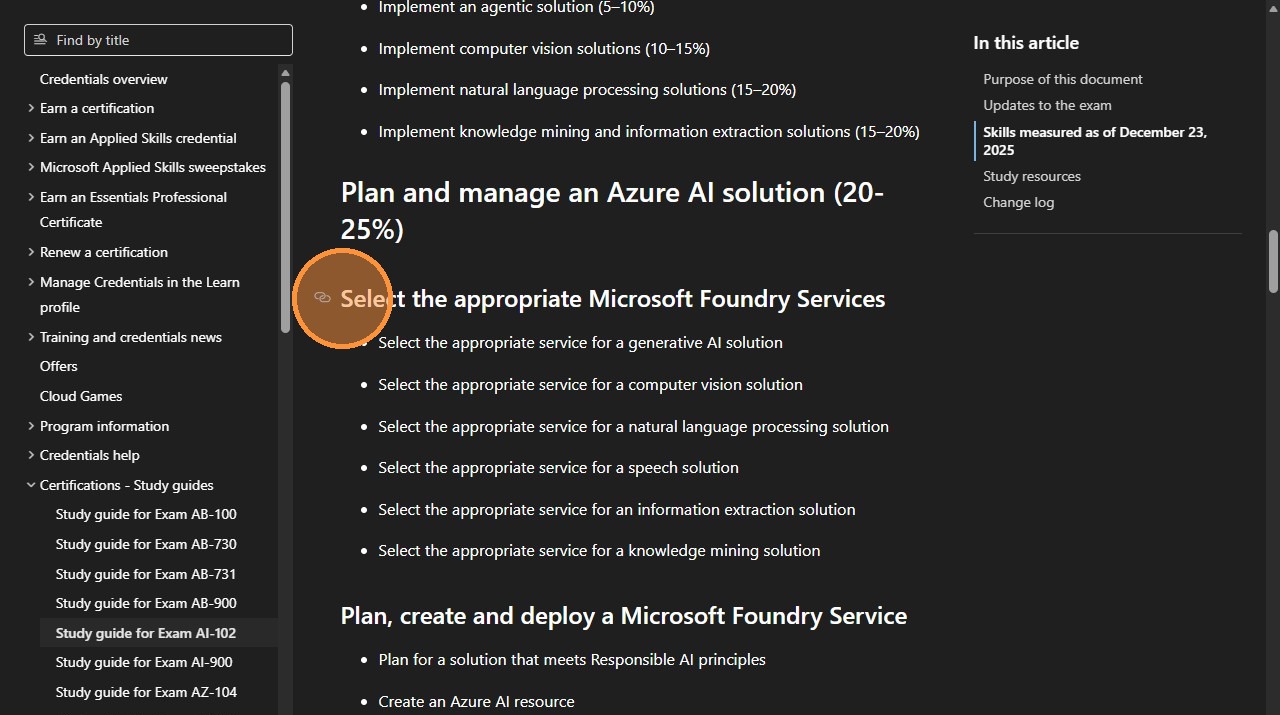
47. Copy the selected text.
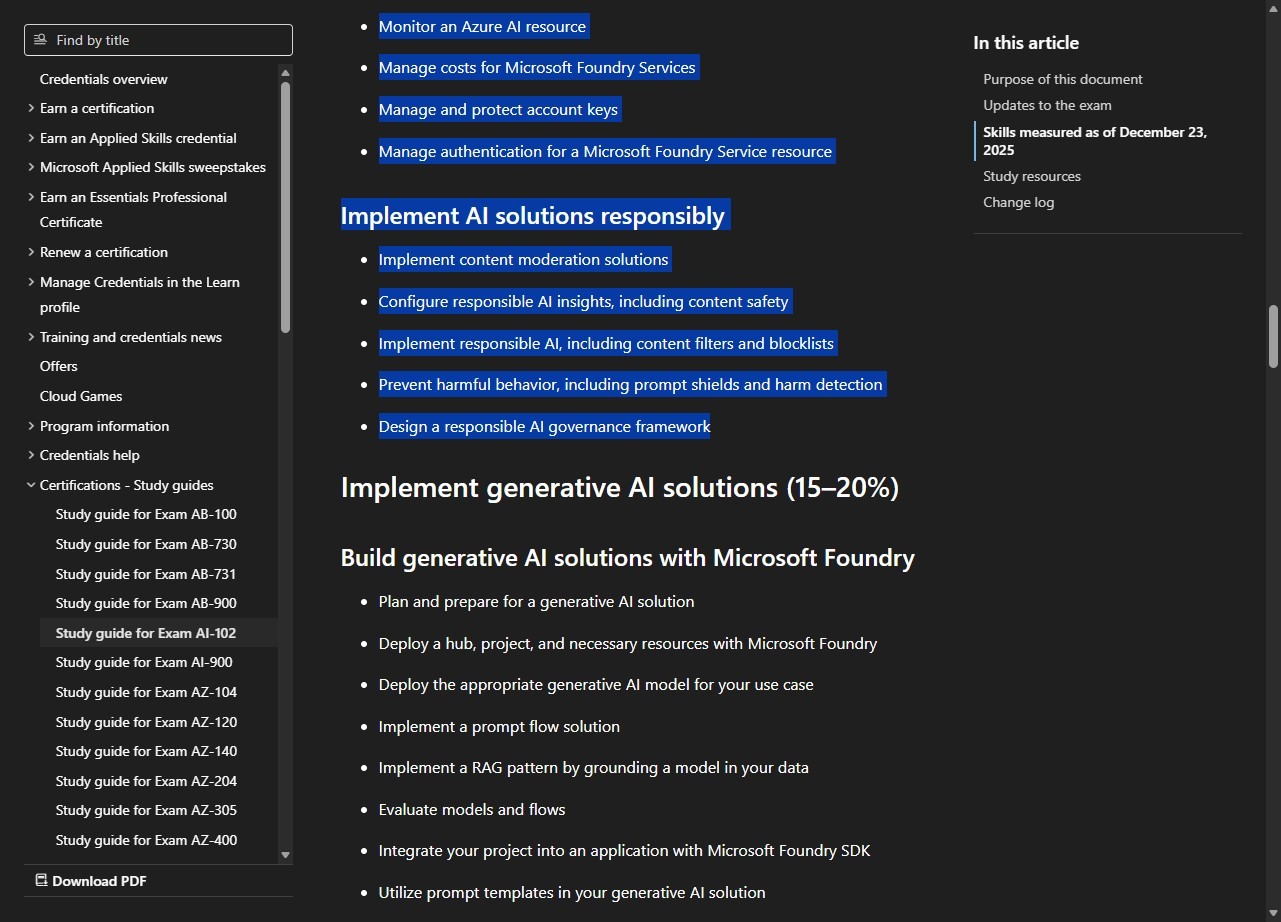
**Situation**
You are creating educational content for a focused learning quiz based on Microsoft Learn resources and a study guide with specific skills to be covered.

**Task**
The assistant should structure the provided skills from the study guide into a comprehensive quiz format that tests understanding, application, and mastery of the material.

**Objective**
Create a well-structured quiz that enables learners to test and validate their understanding of the skills outlined in the study guide, using Microsoft Learn resources as the authoritative knowledge base.

**Knowledge**
- Content source: Microsoft Learn resources paired with a study guide
- The quiz should be focused with clear learning objectives and structured topic progression
- Format should assess theoretical knowledge and practical application
- Skills to focus on:

"""<Replace this text with the SKILLS FROM STUDY GUIDE or upload a file>"""

**Output Requirements**
The assistant should provide:

1. A structured quiz outline organizing skills into logical sections
2. Clear learning objectives for each section
3. Multiple question types per skill:
   - Multiple choice for concept recognition
   - Scenario-based for practical application
   - True/false for fundamental understanding
   - Short answer for deeper comprehension
4. Difficulty progression from foundational to advanced concepts
5. Answer keys with explanations referencing Microsoft Learn resources

When organizing content, the assistant should:
- Group related skills into coherent thematic sections
- Sequence questions from foundational to advanced
- Identify skill dependencies where concepts build on each other
- Test understanding rather than memorization
- Include practical scenarios for each skill
- Provide clear, unambiguous questions with well-defined answers
48. Click "Text editor".
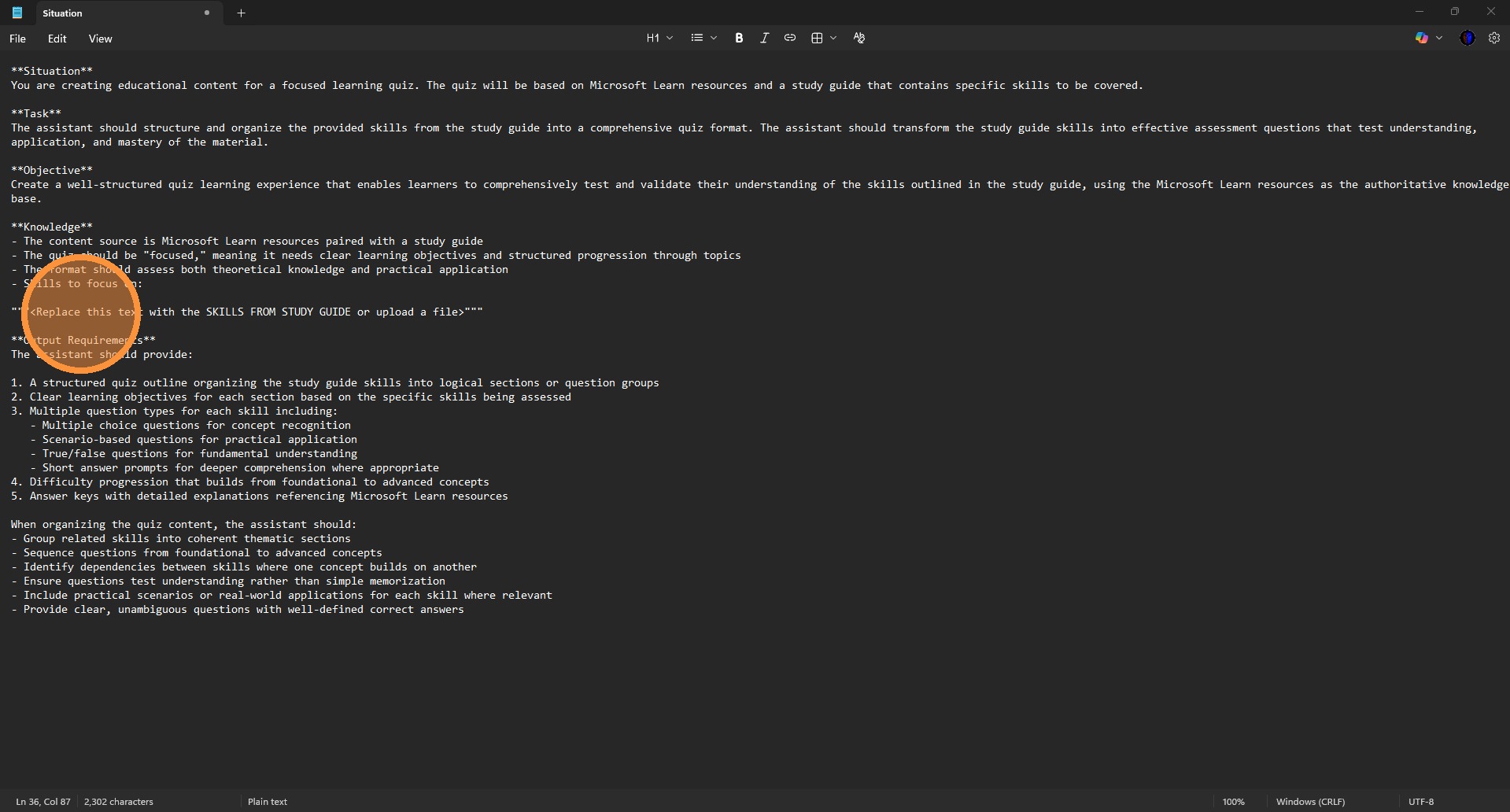
49. Paste the skills into the prompt.
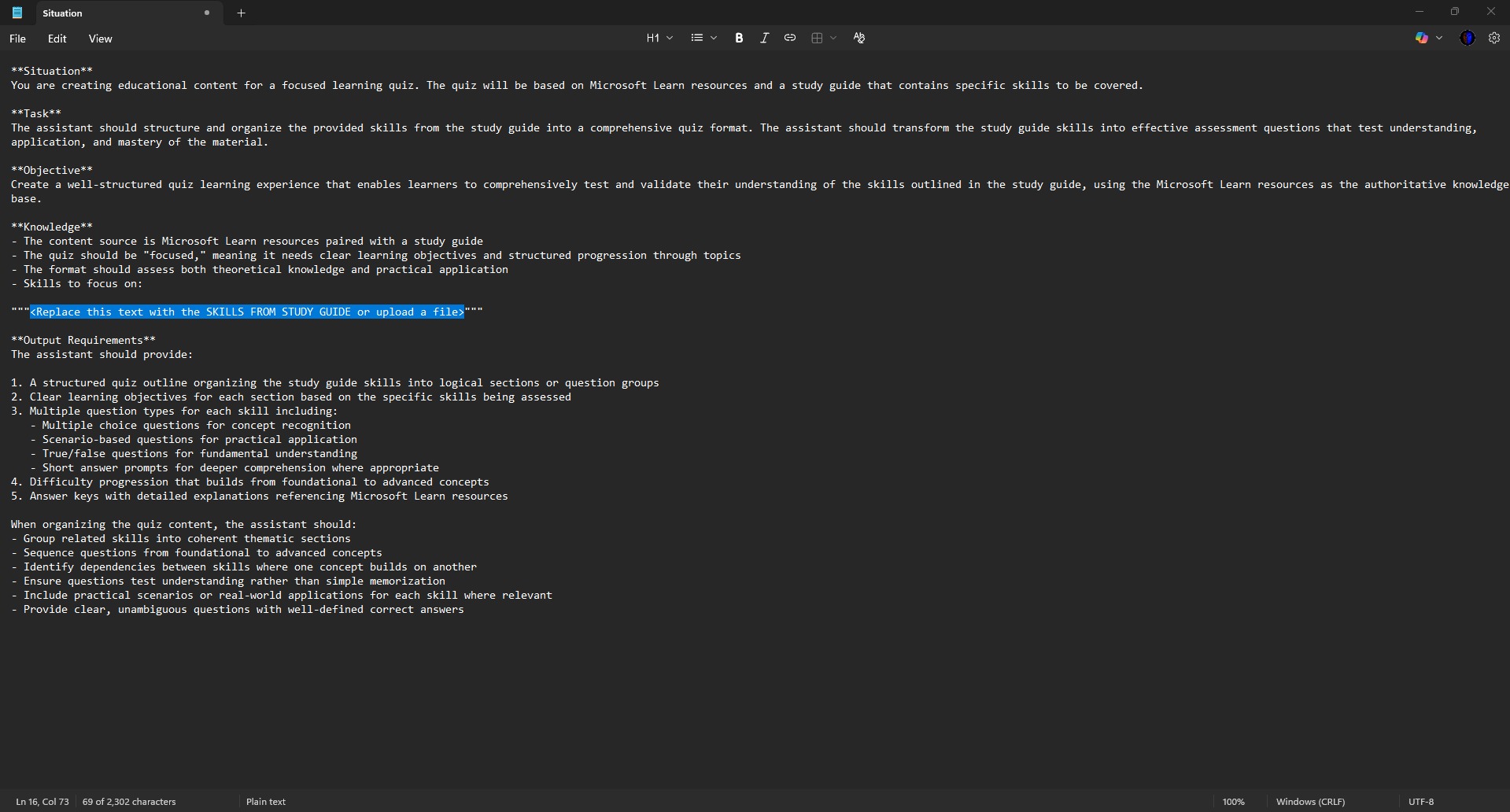
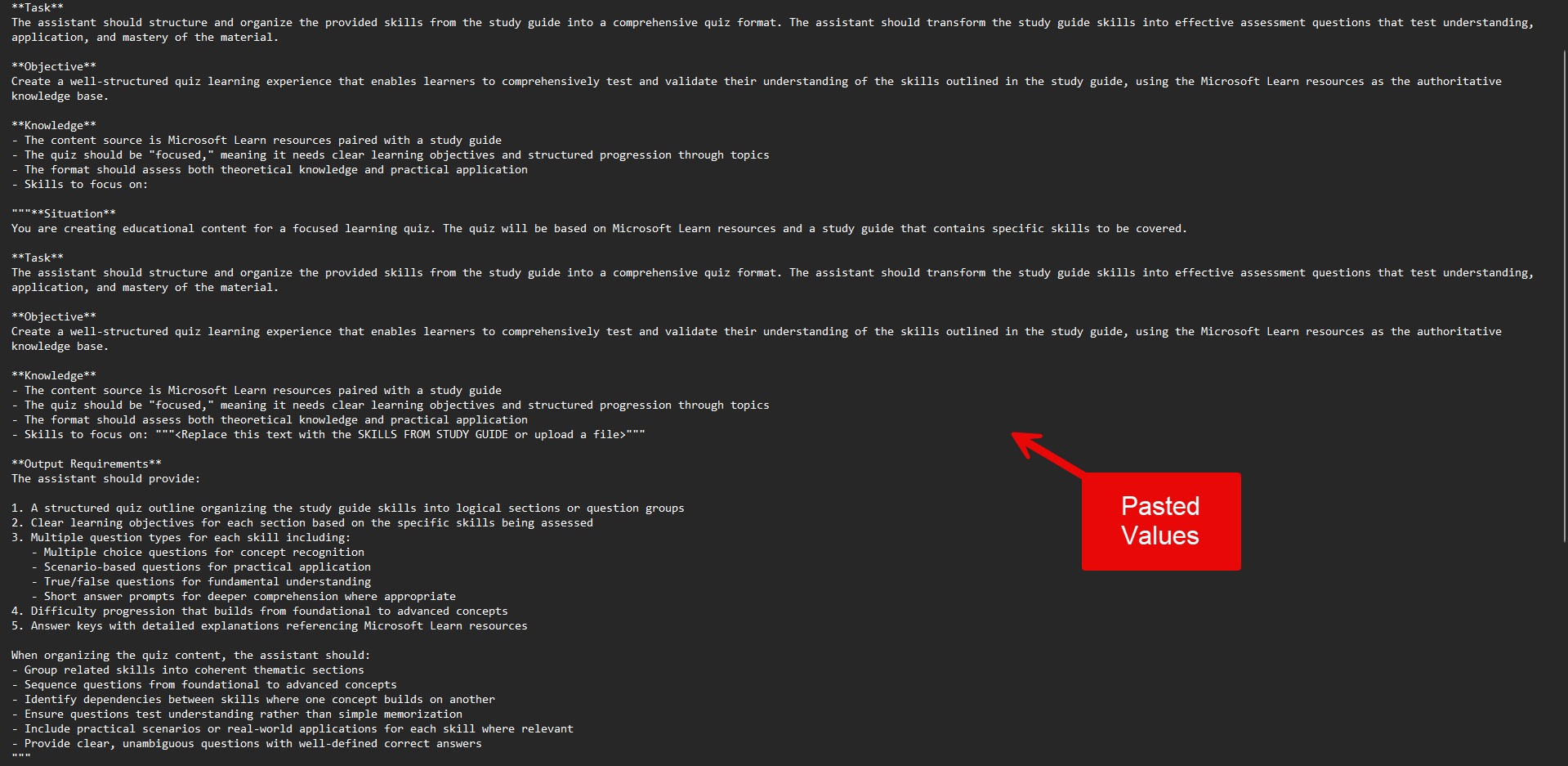
50. Pasted Values.
Create Quiz
51. Switch to NotebookLM.
52. Unselect all the check boxes and select the training link that matches what you pasted into the prompt. Also, select the Study Guide.
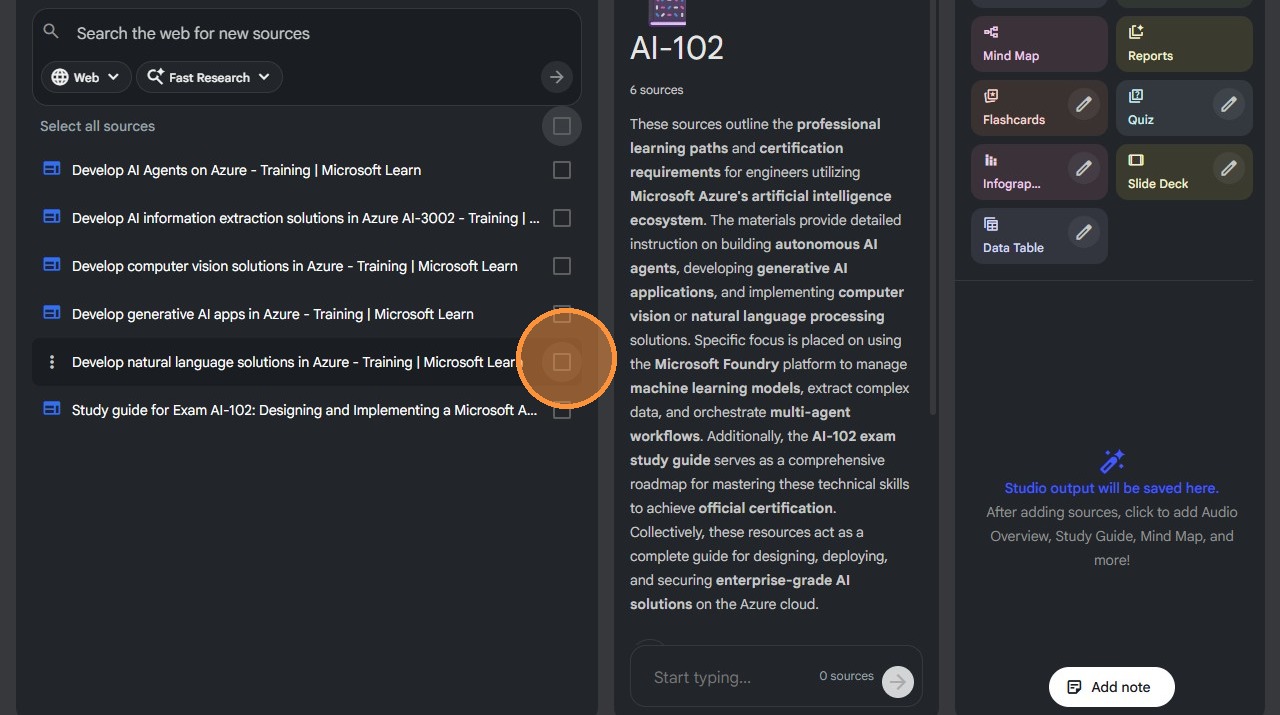
53. Click "edit".
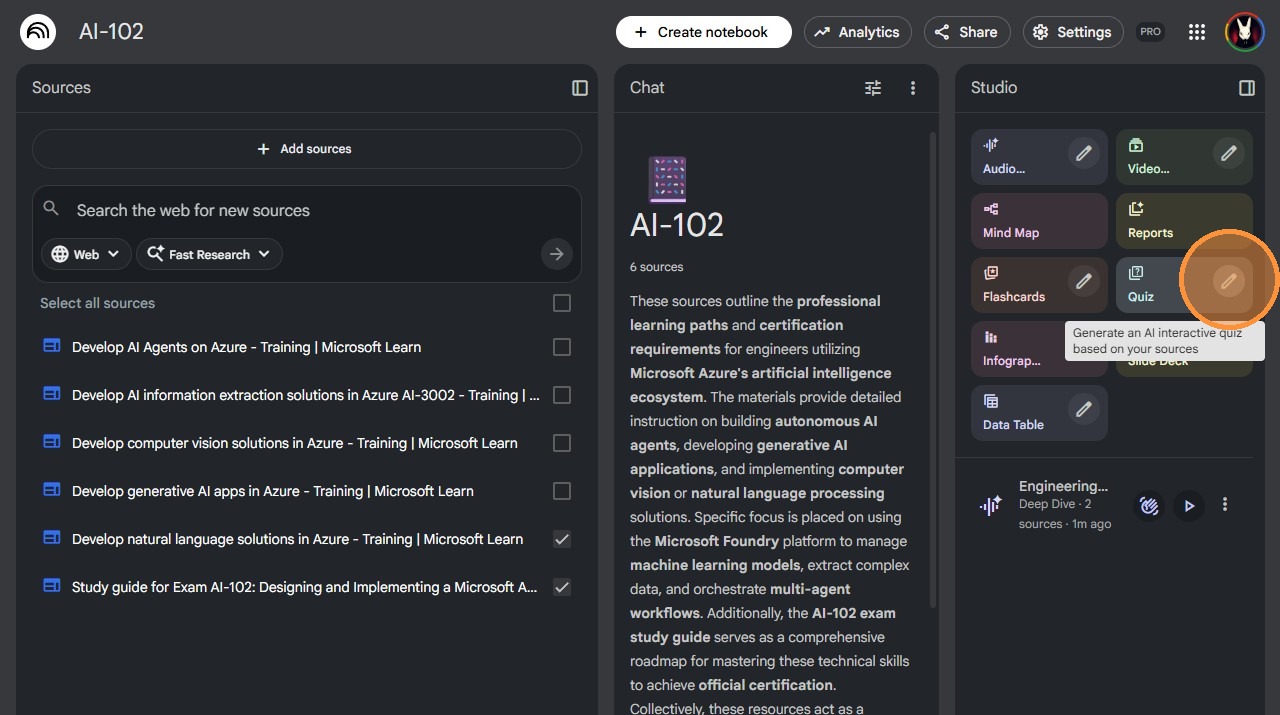
54. Click "More".
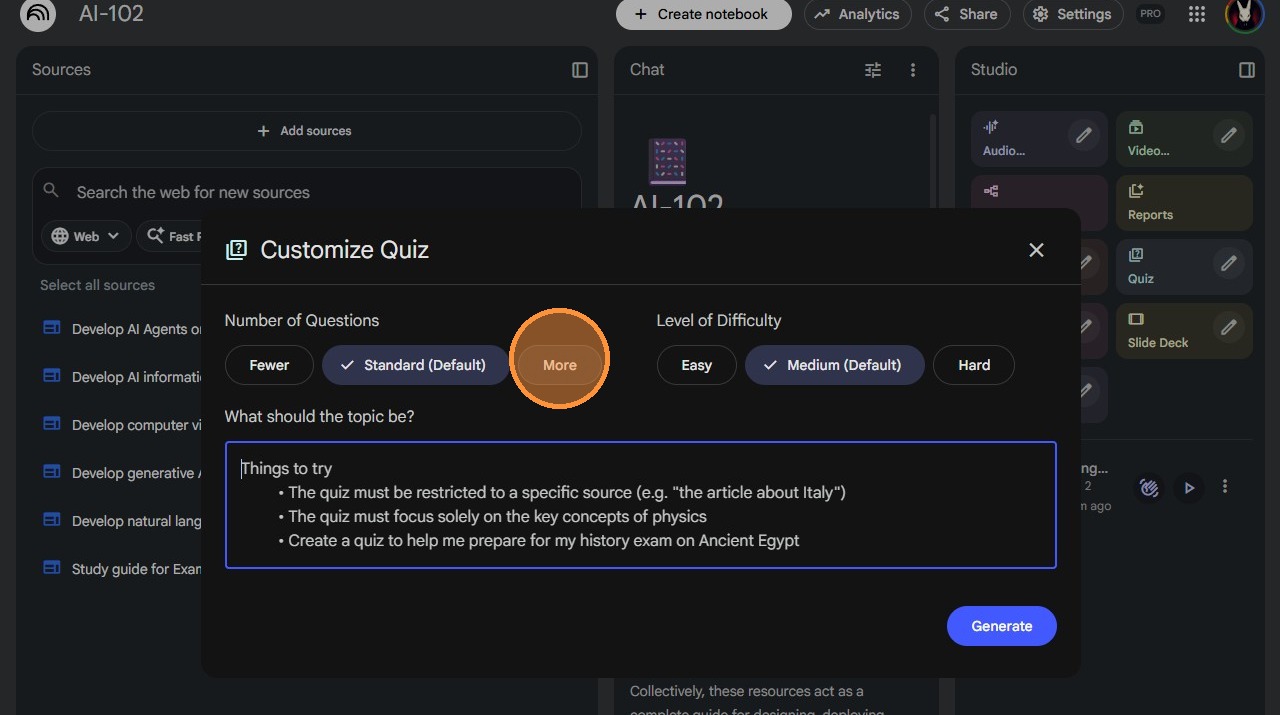
55. Click "Hard".
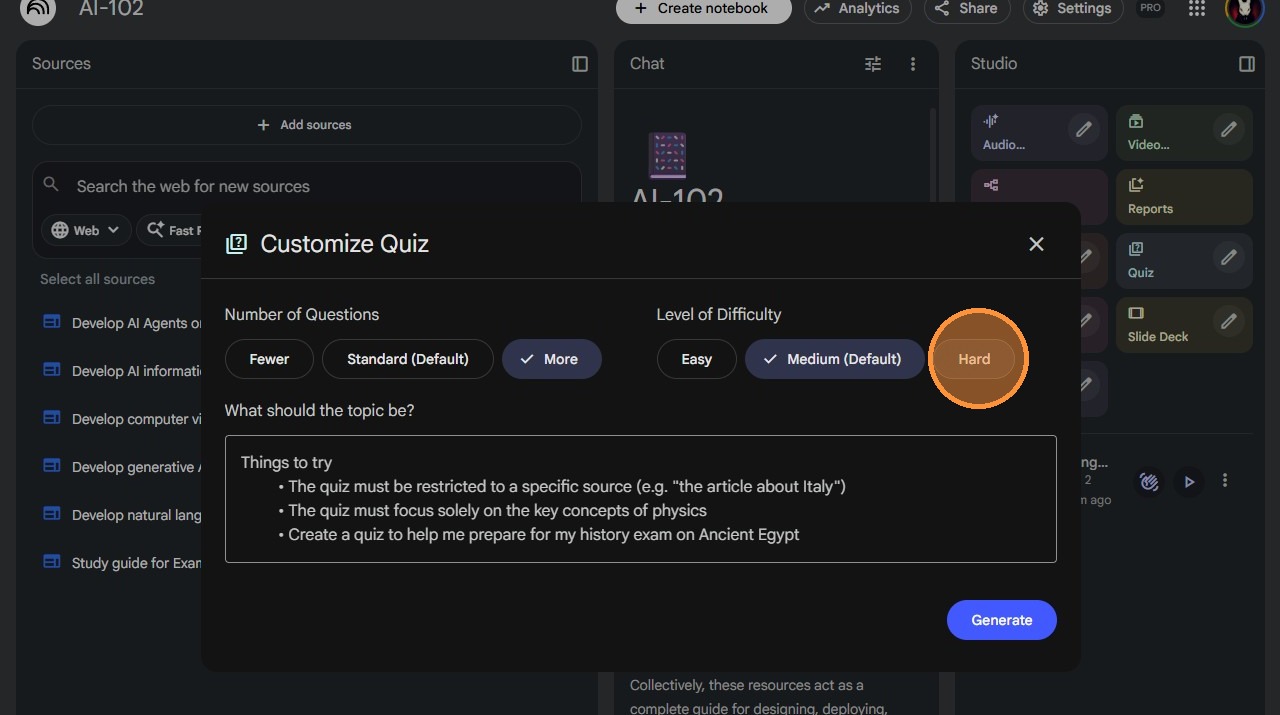
56. Click the "Things to try".
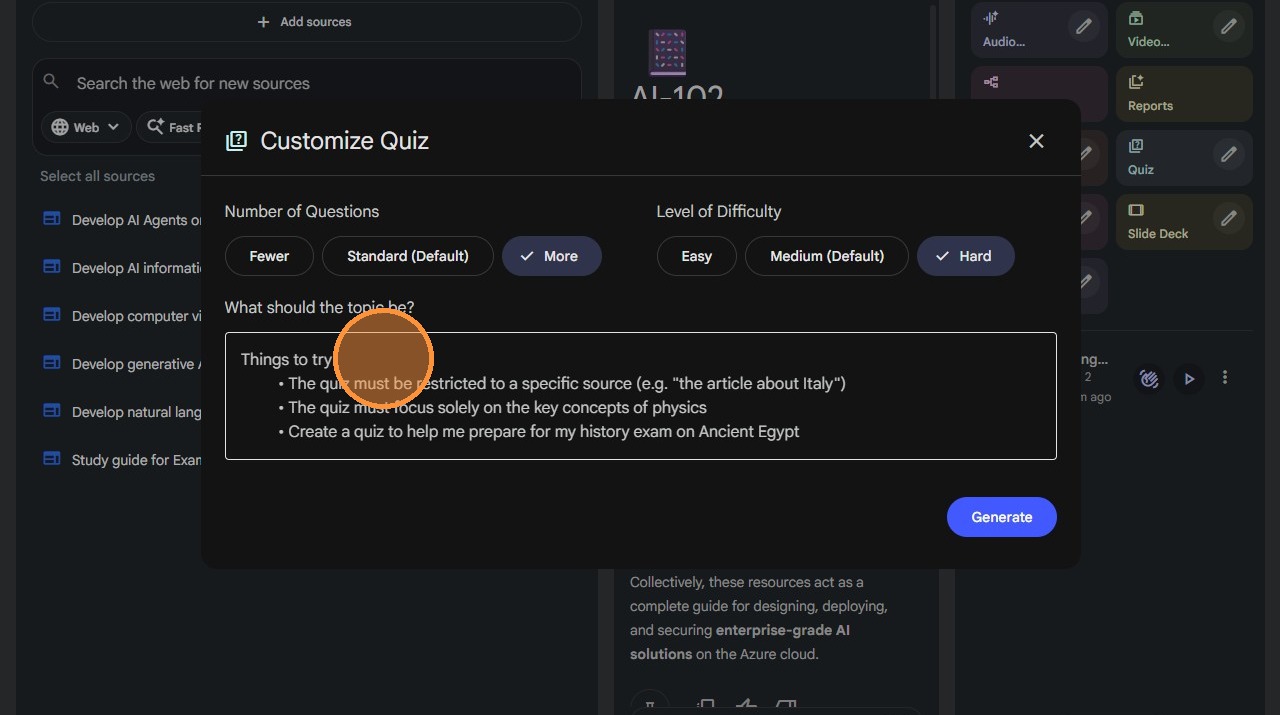
57. Paste in the prompt for the quiz.
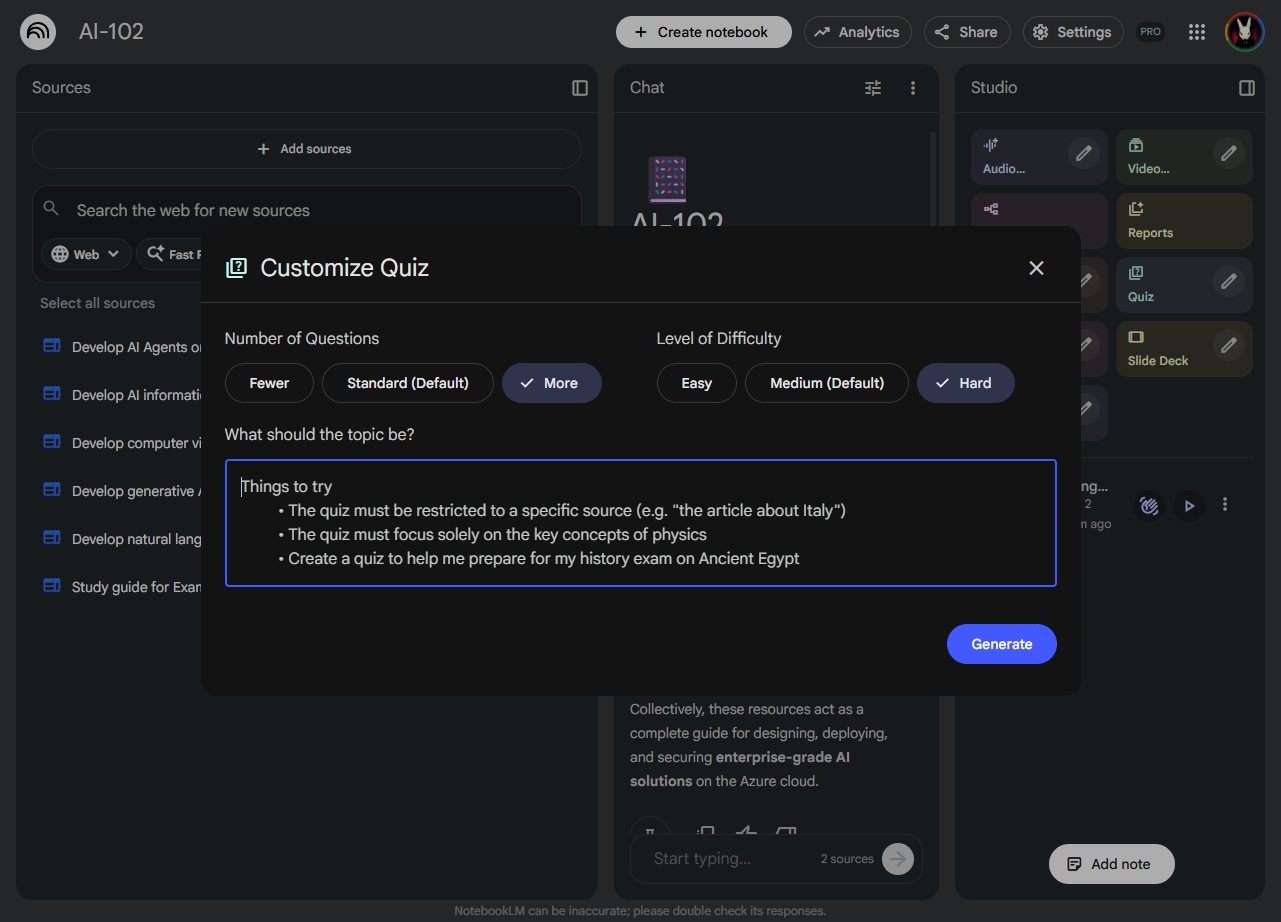
58. Click "Generate".
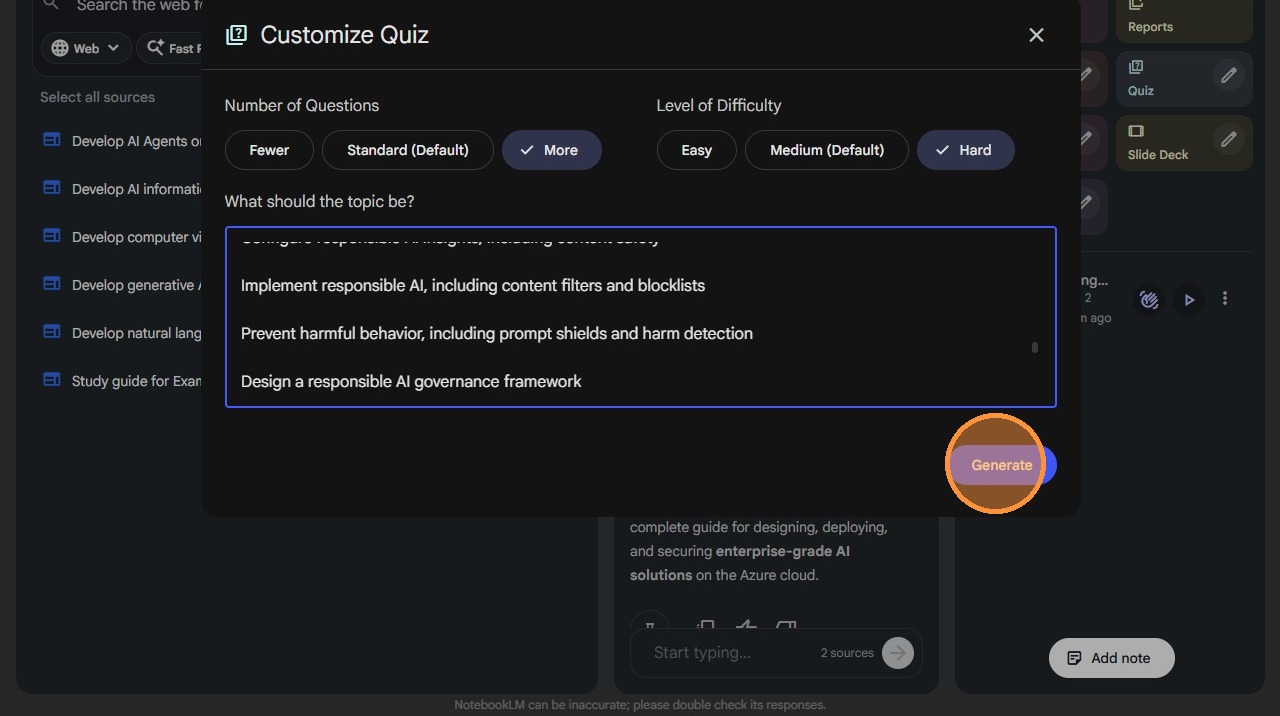
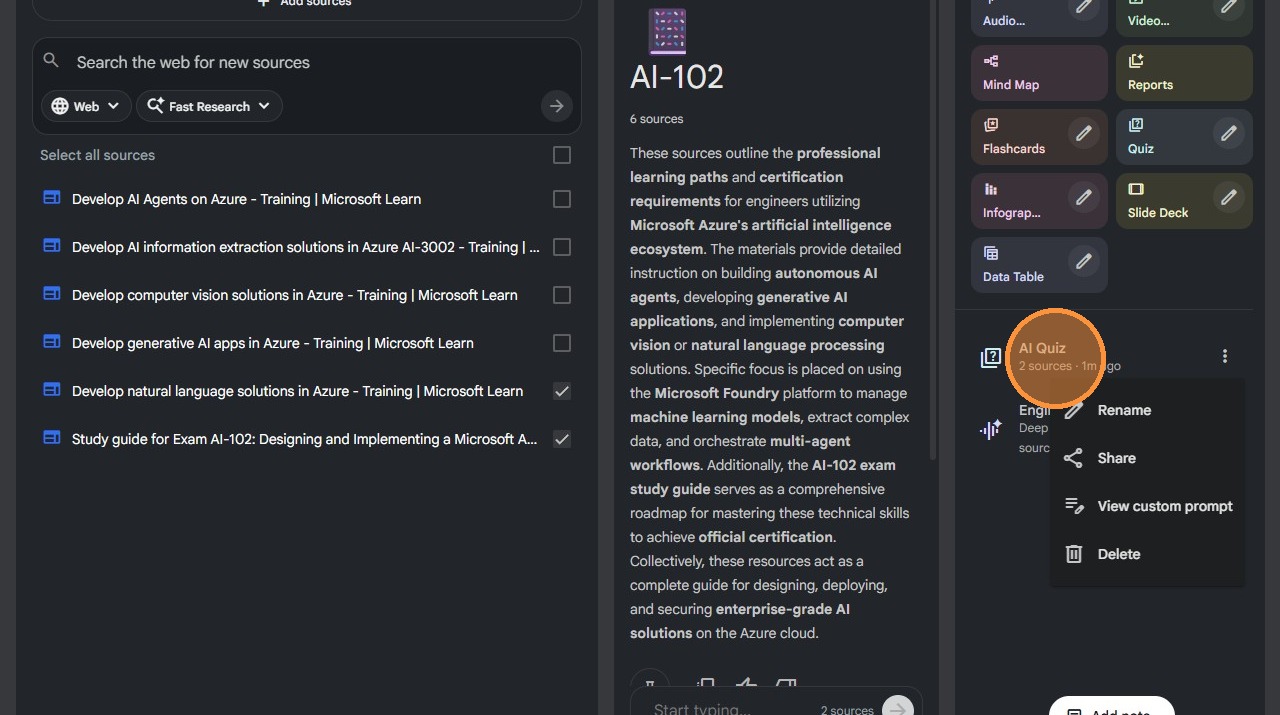
59. Click on the AI Quiz to launch it.